Pretty-printing source code with pandoc
 Jim Hall
Last Updated on July 16, 2026 by David Both
When I first started using Unix systems in the 1990s, printing was still a popular method to share and review source code. These days, I still find it handy to print a program’s source, so I can refer to it on paper. For example, I prefer to have a program listing next to me as a reference when giving a live demonstration, such as at a conference.
Printing a source file to the printer is rather plain. I find that adding some simple formatting can make the source code easier to read: italic text for comments, bold for function names, and so on. In the 1990s, I might use a special kind of program called a pretty-printer to add this extra formatting; for example, the GNU a2ps program does a good job at this, but it has a ton of dependencies to handle all kinds of different files. Because it’s so big, I don’t often use it.
Instead, I discovered I can use pandoc to convert a source file to LibreOffice format, which also formats it in a pretty-printed way. I can print the output very easily. Since I install pandoc and LibreOffice anyway, there’s no need to install a different tool like a2ps to do the same thing. Here’s how I do it.
Wrap it with Markdown
The key concept behind using pandoc to pretty-print my source code is that pandoc’s Markdown can recognize a variety of source file formats and automatically apply formatting to make it look nice in a document.
In standard Markdown, you use a “code fence” to format a block of text as verbatim text, such as source code. For example, to include a two-line Bash script in a Markdown document, just surround the source code sample with three “backticks”:
This Bash script prints "hello world"
and immediately exits:

```
#!/bin/bash
echo "hello world"
```
When you process this Markdown document using pandoc, the source code is formatted as verbatim text, using a typewriter-like font. For example, pandoc would transform this into HTML using <pre> and <code> blocks:
<p>This Bash script prints “hello world” and immediately exits:</p>
<pre><code>#!/bin/bash
echo "hello world"</code></pre>However, pandoc’s Markdown also allows you to add a language identifier, immediately after the first code fence, to indicate a specific programming language. For a Bash script, we can add bash to the first code fence, like this:
This Bash script prints "hello world"
and immediately exits:

```bash
#!/bin/bash
echo "hello world"
```
When pandoc processes this document, it will format the verbatim text using certain rules that help certain features in the source code to stand out:
<p>This Bash script prints “hello world” and immediately exits:</p>
<div class="sourceCode" id="cb1"><pre
class="sourceCode bash"><code class="sourceCode bash"><span id="cb1-1"><a href="#cb1-1" aria-hidden="true" tabindex="-1"></a><span class="co">#!/bin/bash</span></span>
<span id="cb1-2"><a href="#cb1-2" aria-hidden="true" tabindex="-1"></a><span class="bu">echo</span> <span class="st">"hello world"</span></span></code></pre></div>But if we only want to pretty-print the Bash script, we don’t need the introductory paragraph. We can just surround the Bash source with a code fence, and add the bash identifier to the opening fence. This is easy to do using the command line, or automated with a script:
$ (echo '```bash' ; cat hello.bash ; echo '```') | pandoc --from markdown --to html
<div class="sourceCode" id="cb1"><pre
class="sourceCode bash"><code class="sourceCode bash"><span id="cb1-1"><a href="#cb1-1" aria-hidden="true" tabindex="-1"></a><span class="co">#!/bin/bash</span></span>
<span id="cb1-2"><a href="#cb1-2" aria-hidden="true" tabindex="-1"></a><span class="bu">echo</span> <span class="st">"hello world"</span></span></code></pre></div>The parentheses are a Bash extension that allow you to group several commands into one subshell. Here, the subshell prints the first code fence with the bash identifier, then displays the source file, and prints the trailing code fence. The output is sent to pandoc, which transforms it from Markdown into HTML.
The bash identifier is just one format that pandoc recognizes. Others include c for C programming, fortran for FORTRAN 77 code, perl for Perl scripts, and awk for Awk and Gawk scripts.
Converting to LibreOffice format
With that demonstration of how to use pandoc to format a source file, we can see how I actually pretty-print my files: I convert the output to LibreOffice format. This produces more interesting formatting, including colors, bold type, and italic text.
Bash script
Here’s an example that pretty-prints a Bash script that mimics the original Unix typo command, to identify misspelled words in a text document:
$ (echo '```bash' ; cat ~/bin/typo ; echo '```') | pandoc --from markdown --to odt -o typo.odt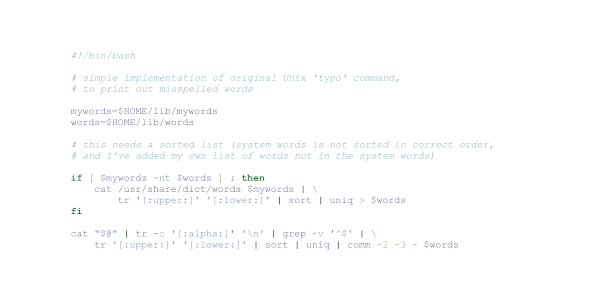
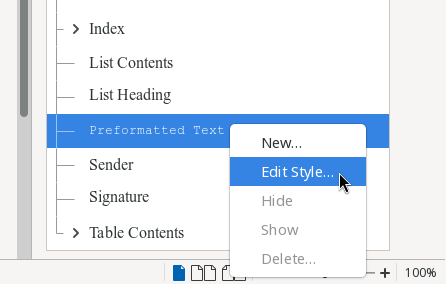
By default, pandoc formats the verbatim text using Courier. This looks good in print, but I don’t like it. Fortunately, this is easy enough to change by modifying the Preformatted Text paragraph style in LibreOffice and choosing a new font. To modify a style in LibreOffice, right-click on the style name in the Styles sidebar, and select “Edit Style”:
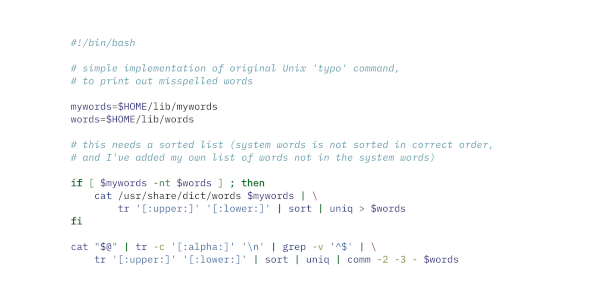
I prefer IBM Plex Mono to display source code. The Plex Mono font is reminiscent of the IBM Selectric typewriter font, which looks great on screen and in print:
Gawk script
We can do the same to format a Gawk script for printing. This script scans words on the input and only prints words that only use each letter once. For example, the script will print stare but not unique:
$ (echo '```awk' ; cat ~/bin/uniqltr.gawk ; echo '```') | pandoc --from markdown --to odt -o uniqltr.odt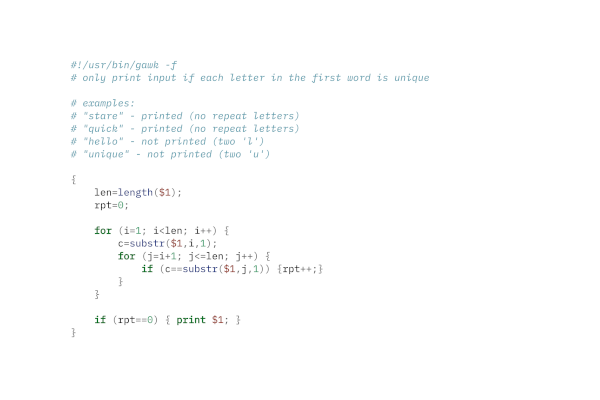
FORTRAN 77 program
When pretty-printing my FORTRAN 77 programs, I sometimes save some space by removing any blank lines. This doesn’t affect the program because old-style FORTRAN ignores empty lines anyway. For short programs, the pretty-printed output is still quite readable without the blank lines:
$ (echo '```fortran' ; grep -v '^$' ~/src/fortran/mand.f ; echo '```') | pandoc --from markdown --to odt -o mand.odt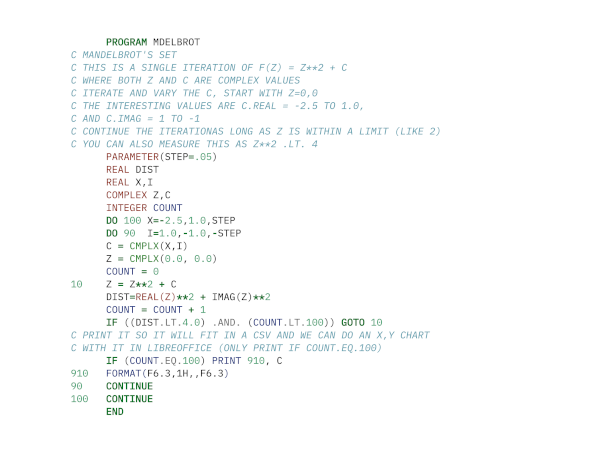
C program
When formatting C programs, I usually take the opportunity to reformat the source code so it is more readable. The indent program will do this for you automatically. The -linux option uses the Linux kernel coding style, which provides a good balance for readability without taking up too much vertical space, and -st prints the output to the standard output so it can be processed with pandoc:
$ (echo '```c' ; indent -linux -st ~/src/guess.c ; echo '```') | pandoc --from markdown --to odt -o guess.odt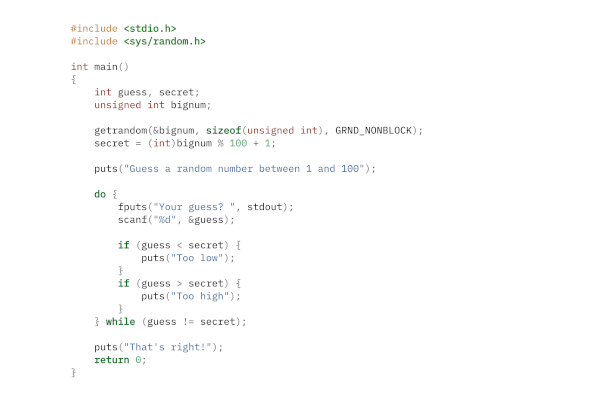
Formatted output with pandoc
While I don’t often need to format printed output in this way, it’s handy to know how to use pandoc and LibreOffice together to pretty-print source code. This makes it easier to read and review, which is helpful when I’m using it as a reference during a presentation.
To see what other language identifiers you can use with pandoc’s Markdown, type
$ pandoc --list-highlight-languages

 Don Watkins