Don Watkins
Containers aren’t new, but I am new to using them. I’m particularly interested in locally hosted AI. In the past, I wrote several articles about utilizing Ollama, GenAI, and other locally installed large language models (LLMs) on my Linux desktop. In this article, I will share my recent experience setting up Ollama in a container. Running Ollama in a container simplifies dependency management, prevents conflicts on your workstation, and helps keep your development environment consistent.
An old friend recently began experimenting with locally hosted AI, and since I’ve been working with containers, I thought, why not give Ollama another try in a container environment. I found a good ‘how-to’ from Fedora Magazine and adopted it for my use. First, install Podman. I used Flatpak to install it, but you can use dnf on Fedora or apt on Ubuntu and Debian.
Once Podman is installed, open a terminal and enter the following:
podman volume create ollama_storageThis creates the storage volume for the LLMs. LLM weights are large. A persistent volume ensures your downloaded models aren’t lost when the container stops.
Now you are ready to run the Ollama container. Enter the following command in a terminal:
podman run -d \
  --name ollama \
  -v ollama_storage:/root/.ollama \
  -p 11434:11434 \
  docker.io/ollama/ollama:latest
I couldn’t run a container on my setup using the specified ports. I changed the port setting to 4134, and the container ran flawlessly. I don’t have an NVIDIA GPU, which would be ideal for this setup, but if you do, here is the code you should run instead of the code I used, which was for CPU-only installations.
podman run -d \
  --name ollama \
  --security-opt=label=disable \
  --device nvidia.com/gpu=all \
  -v ollama_storage:/root/.ollama \
  -p 11434:11434 \
  docker.io/ollama/ollama:latest
Now you want to open Podman and ensure that your newly created container is running.
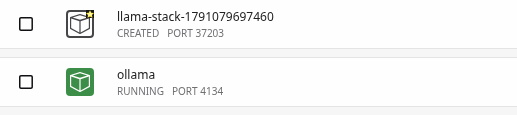
With the container started you will want to pull your first model down so that you can begin experimenting with your locally hosted large language model. Do that by entering the following command:
podman exec -it ollama ollama run llama3
Depending on your internet speed, this might take a few minutes, and then you will be ready to use the Llama 3 model in Ollama. In the prompt, I asked the model for a simple fact about Linux Mint. This was the result:
>>> tell me a fun fact about Linux Mint
Here's a fun fact:

Linux Mint is a Linux distribution that was created by Clement Lefebvre, a
French programmer, in 2006. What's interesting is that Linux Mint was
originally intended to be a Ubuntu-based distribution, but it quickly
gained popularity and became a standalone project in 2009. Today, Linux
Mint is one of the most popular Linux distributions in the world, with
over 3 million users!
In conclusion, setting up Ollama in a container provides a streamlined way to experiment with locally hosted AI models while managing dependencies and avoiding conflicts. By utilizing tools like Podman and adopting a few configuration tweaks, you can easily create a consistent development environment.

 David Both
 Jim Hall