My favorite Git tools
 mcdwayne
Git reflog, git gc, git bisect, and git worktree are just a few of the tools I use routinely.
As with any other technology or skill, just reading about Git cannot make you proficient at it or make you an “advanced” user. Now it’s time to dig into some of the tools in Git that I’ve found useful, and hopefully, that will help you use Git.
Git reflog
In my previous article, I wrote about Git history as a chain of commits, and that’s a very good model for most purposes. However, Git actually remembers everything you do with Git, not just commits. You can see your entire recent history with git reflog.
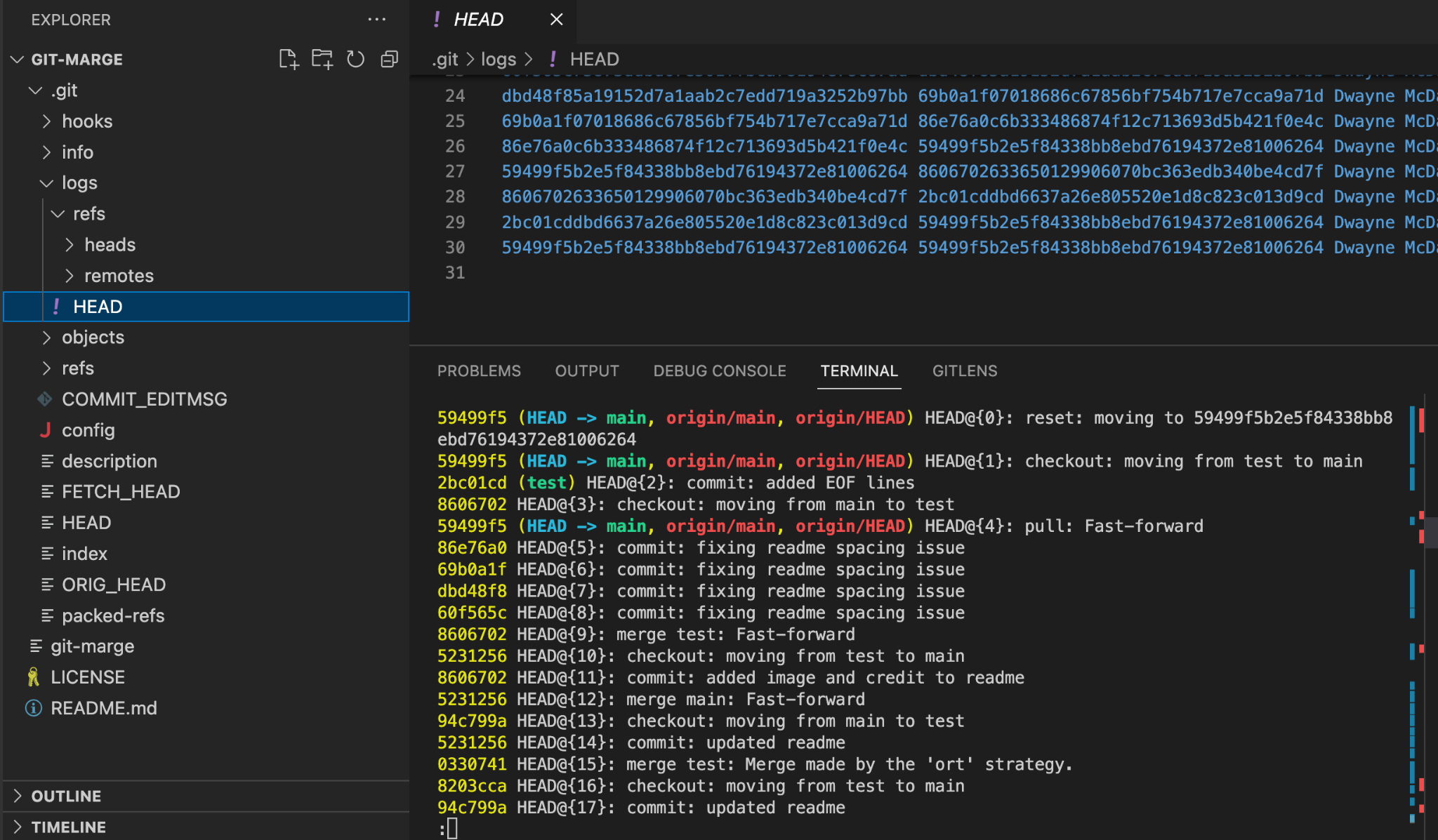
The log that reflog refers to is found in .git/logs, and it’s called HEAD. Opening this file, you can quickly see all the actions taken recently. Inside .git/logs/HEAD, you see rows corresponding to the output of the reflog command.
You can checkout any of the states in a reflog. No matter what you do, Git gives you a way to easily get your files back to a previous state!
To checkout a previous state, use the command:
git checkout HEAD@{<#>}Replace <#> with the number of steps behind HEAD you want to reference. For instance, if I wanted to check out the state right before I did the last git pull from my example, I would use the command git checkout HEAD@{5} Doing this puts Git into a detached head state, so I would need to make a new branch from there if I wanted to preserve any changes I wanted to make.
By default, your reflog sticks around for at least 30 days before Git cleans up its history. But it does not throw this info away; it packs it into a more compressed form. You don’t need to wait for Git to tidy up. You can do it any time with the garbage.
Git gc (garbage collection)
Even though the size of objects and files in your .git folders are tiny and highly compressed, when there are a lot of items present, then Git can start to slow down. After all, looking up entries from a list of 1,000 refs is more time-consuming than a list of only a handful of entries. From time to time, Git performs an internal garbage collection step, packing up all the objects and files not actively in use. It then stuffs them into a highly compressed pack file.
But you don’t need to wait for Git to decide to clean up the unused objects. You can trigger this any time you want with the git gc command.
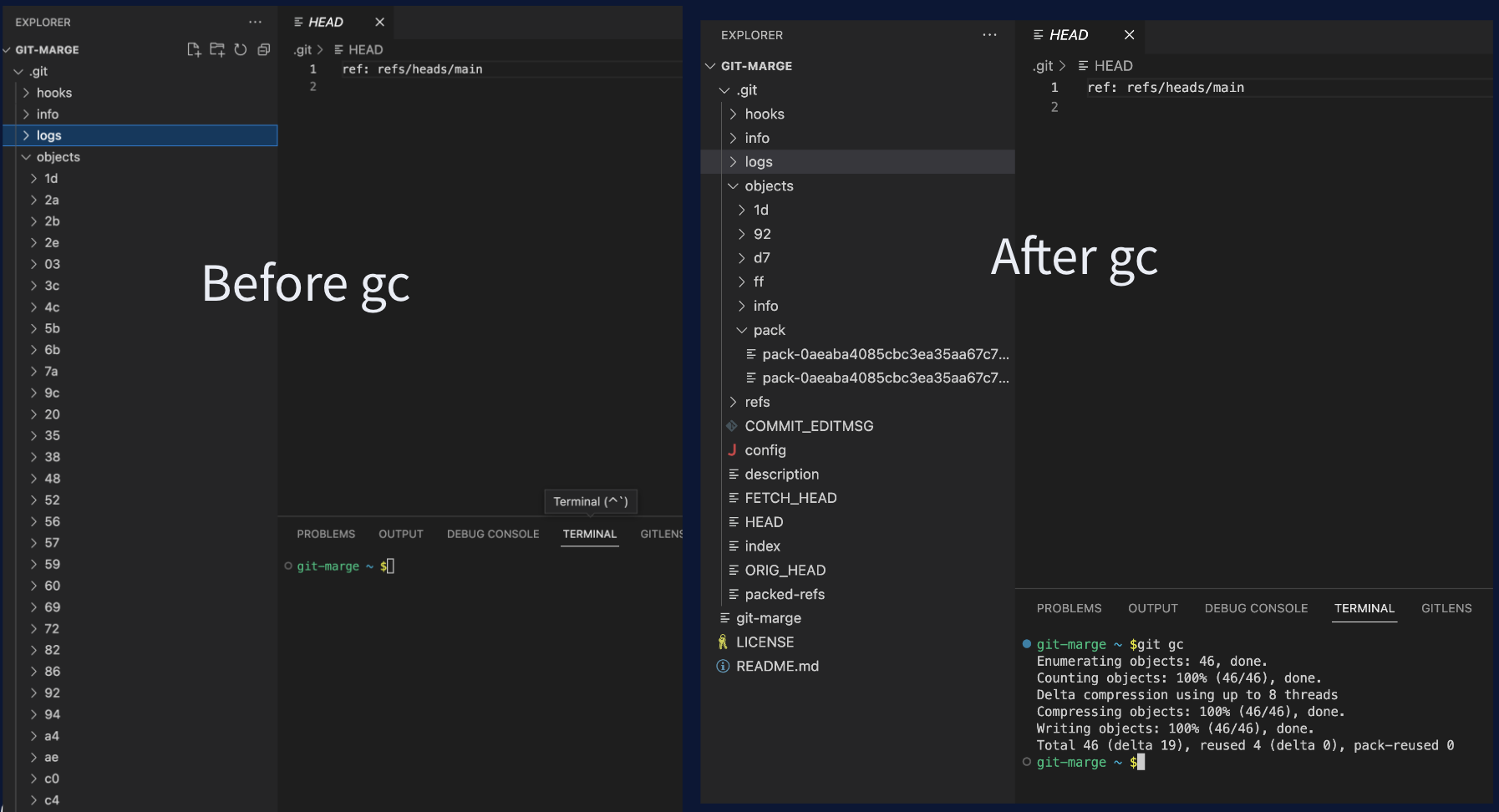
Next time you’ve made hundreds of commits locally, or you just notice that Git commits are taking a little longer than usual, try running git gc. It might speed things up.
Git bisect
The git bisect command is a powerful tool that quickly checks out a commit halfway between a known good state and a known bad state and then asks you to identify the commit as either good or bad. Then it repeats until you find the exact commit where the code in question was first introduced.
Git worktree
Imagine a scenario where you are working in a branch, very deep into adding new dependencies, and are not in any way ready to make a commit. Suddenly, your pager goes off. There’s a fire is happening in production, and you need to drop everything, switch to a hotfix branch, and get that patch built quickly.
It’s decision time. Do you could cross your fingers, make a commit, and hope you remember where you left off? Do you git stash, which might cause dependency issues and also mean you have to remember what exactly you were doing when you stashed? Or do you just checkout the other branch with a different folder and work as you usually would?
That last option might sound too good to be true, but that is precisely what Git worktree allows you to do.
Normally with Git, you can only have one branch checked out at a time. This makes sense, now that you know that Git tracks the active branch with HEAD, which can only reference one ref at a time.
Git worktree sidesteps this limitation by making copies of branches outside the repository folder. Git knows that this other folder exists and that any commits made there need to be accounted for in the original repo folder. But the copy of the branch also has its own HEAD file keeping track of where Git is pointing in that other location!
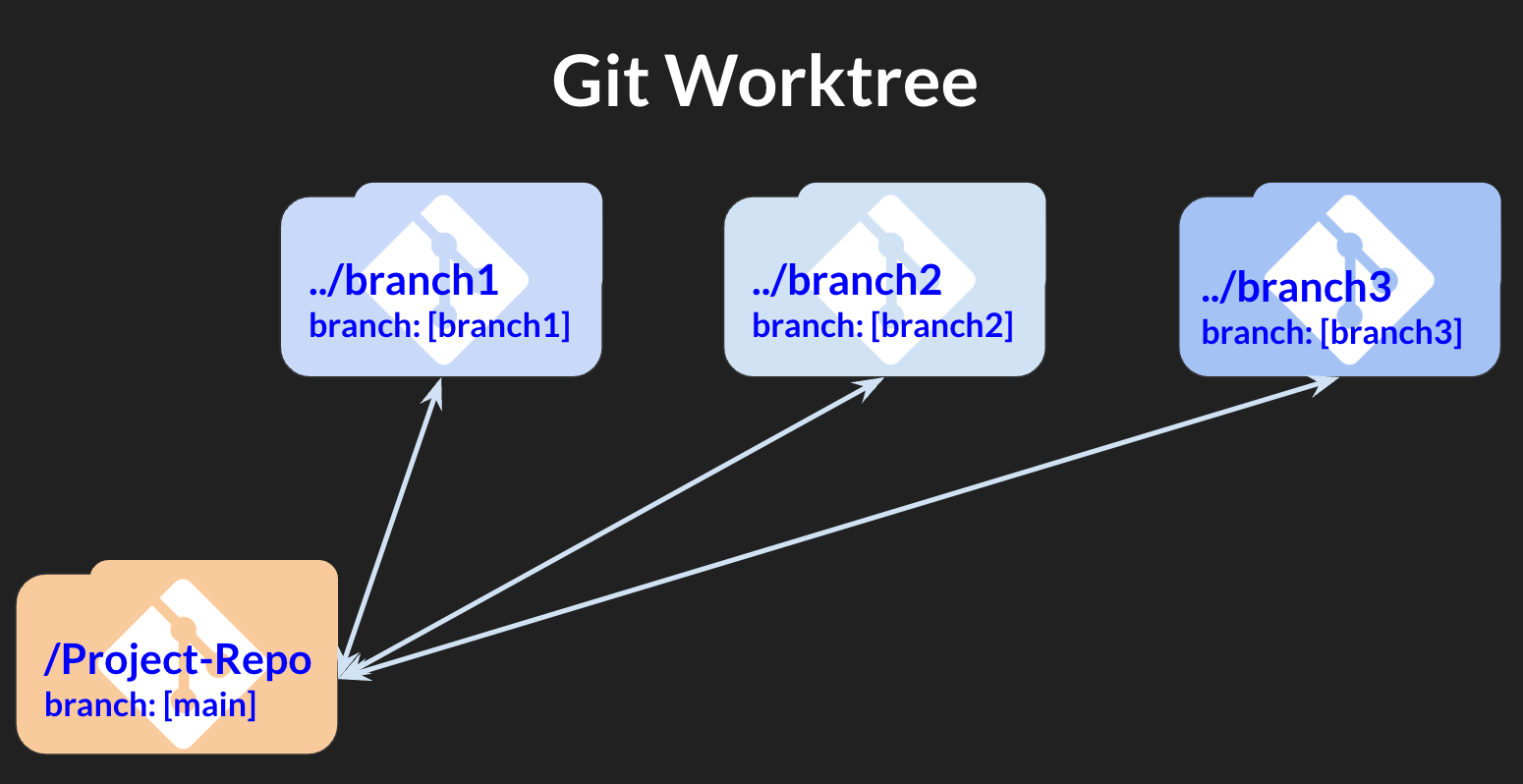
Git always has at least one worktree open, which you can see by running the command:
git worktree listThis command shows you the current folder where .git is located, the most recent commit ID, and the name of the currently checked out branch at the end of the line.
You can add more entries to the worktree list with the command:
git worktree add /path-to-new-folder/<branch-name>The add directive creates a new folder at the specified path, named the same as the target branch. Git also sends a linked copy of the repo to that folder, with that branch already checked out. To work in that branch, all you need to do is change the directory then proceed to work as usual.
When you are ready to go back to the original work you were focused on before being interrupted, just change directly back to the original folder. Your work is in the exact same state you left it earlier.
When you are done and want to clean up after yourself, remove any worktree items you want with the command git worktree remove /path-to-new-folder/<branch-name>
A few words of warning for using Git worktree:
- If a branch is assigned to a worktree, you can not check it out as you normally would. Attempting to checkout a branch that is already checked out throws an error.
- It’s a good idea to remove any unneeded worktree entries as soon as you’re finished with them. Errors might occur when running other Git operations while multiple branches are checked out.
- When working in a code editor like VS Code, changing directory in the terminal doesn’t automatically change the open folder in your editor. Remember to open the desired folder through the file menu to ensure you are modifying the correct version of the project files.
So much more to Git
While it might feel like I’ve covered a lot here, I’ve actually only scratched the surface of what’s possible with Git. It’s possible to build entire applications that complement Git, and extending that even further is possible. Fortunately, there are also a lot of resources you can turn to when learning Git.
The one book I would recommend everyone read is absolutely free and you can download it right now. The Pro Git Book covers how Git works in great detail and gives a lot of excellent examples. The one caveat about the book, though, is that it is a little out of date. The free version linked from the git-scm website is from 2014. Still, this book gives you the best foundational knowledge of how Git works and helps make any other Git-related topics more accessible.
There are also cheat sheets and articles out there to help you become a Git expert in no time. But as I said earlier in this article, the only way to learn Git, or any other skill, is to practice, practice, practice.
 AmyJune Hineline