Is there a better Pi Day than March 14?
 Jim Hall
It’s Pi Day today! Today is an excellent opportunity to do “pi” related things, like measuring pi with a Raspberry Pi.
We celebrate this day because “March 14” is written as “3/14” in the US, and the value of pi is 3.14 (to the first two decimal places). But in other countries, the date is instead written “14 March” or “14/3” which is not recognizable as “pi.” That’s why some prefer to recognize Pi Day on other dates, like 22 July or “22/7” which is a reasonable approximation of pi: 22 divided by 7 is about 3.1428.
But there are 365 ways to divide “month by day,” and twice that if you also consider dividing “day by month.” Is there another date that gets closer to 3.14?
Calculating dates
One way to divide “month by day” and “day by month” for every day of the year is to use a spreadsheet like LibreOffice Calc. Follow these steps to do it on your own:
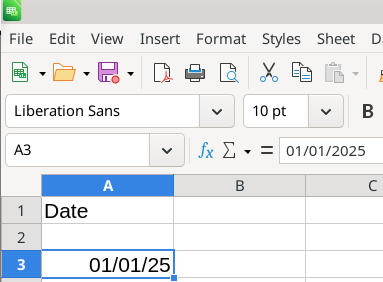
First, enter the date for January 1, 2025, in a cell. I’ve reserved the first row for labels, and entered my values and calculations starting in row 3. Enter the value “1/1/25” in cell A3. LibreOffice interprets this as a date, stores it internally as such, and displays the value using standard date formatting:
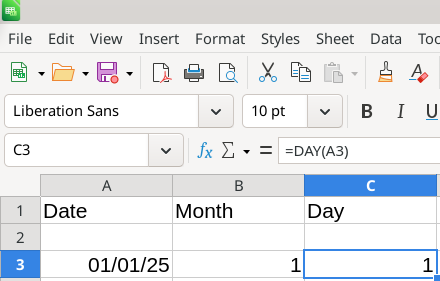
Next, use the MONTH and DAY functions to separate the month and day from the date. To do this, enter the function =MONTH(A3) in cell B3, and the function =DAY(A3) in cell C3:
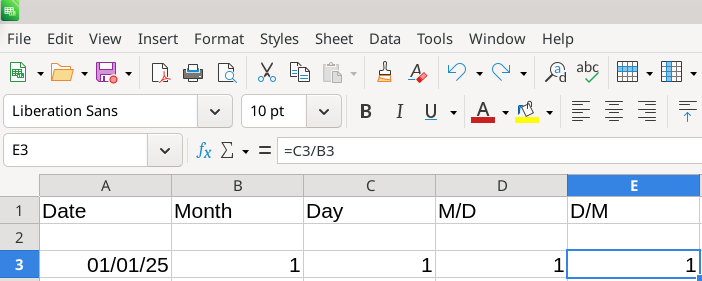
Then, perform two separate calculations: Let’s use column D to divide “month by day,” and column E to divide “day by month.” Enter =B3/C3 in cell D3 (month divided by day) and =C3/B3 (day divided by month) in cell E3. These are both 1 for January 1, because it’s 1 divided by 1 either way. For now, we only need to the calculation for one day; we can use the spreadsheet to auto-fill the calculations for the other days of the year in another step:
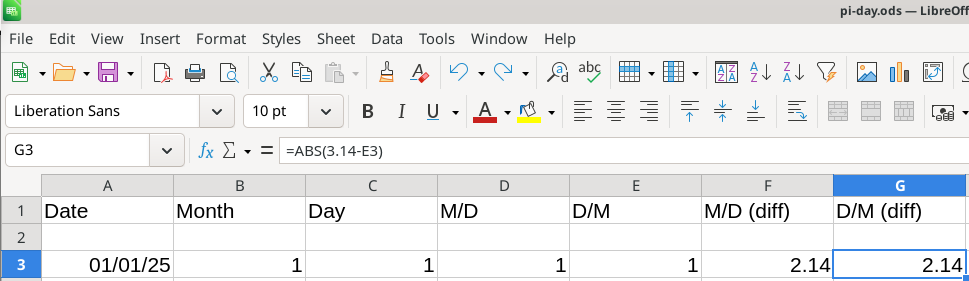
We also need to know how close this calculation is to the value of pi, which is about 3.14. The calculation might be greater than or less than pi, such as January 31: 1/31 or 0.0322 is less than pi, and 31/1 or 31 is greater than than pi. I find it easier to read positive values, so make one more pair of calculations in columns F and G to find the absolute value (always positive) difference from pi. To make this calculation, enter =ABS(3.14-D3) in cell F3, and =ABS(3.14-E3) in cell G3:
Now that you’ve entered all of the calculations for January 1, we can let the spreadsheet do the hard work of calculating the other 364 days of the year. Use your mouse to click and drag from cell A3 to G3, which selects all of these cells at once. Note the “dot” in the lower-right corner of G3; draft this “dot” down to fill other rows in the spreadsheet, until you reach cell G367. The spreadsheet will automatically propagate or auto-fill the calculations in the highlighted row to the other rows in the spreadsheet:
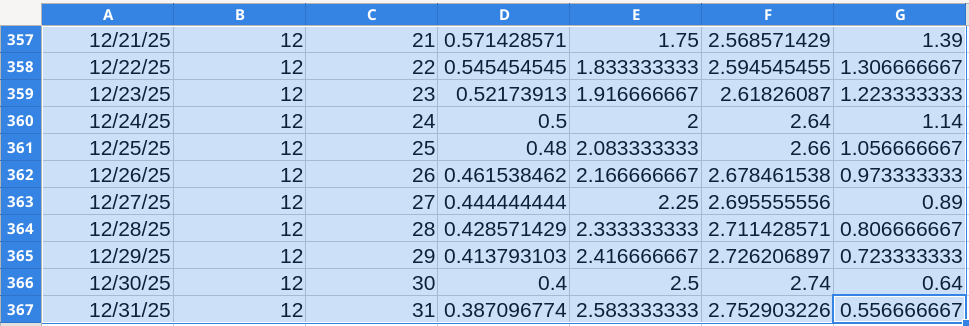
That’s a lot of calculations, and a lot of results to evaluate. Dividing “month by day” and “day by month” gives us two columns of 365 different calculations, or 730 calculations total. How can we quickly determine which cell is closest to the value of pi?
This is where we can use a feature called conditional formatting to highlight cells that match a condition. To find the calculations that are closest to the value of pi, we actually want to highlight the “difference” cells in columns F and G, which contain the absolute value of dividing “month by day” and “day by month” compared to the value 3.14. Highlight the cells from F3 to G367, and use the Format > Conditional menu action to create a condition where the value in those cells is less than some small value:
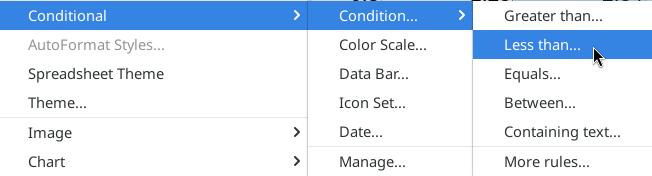
We can use any “difference” value here, but as a guess I entered “less than 0.1” for the condition, and applied the cell style named “Good” to any matching cells:
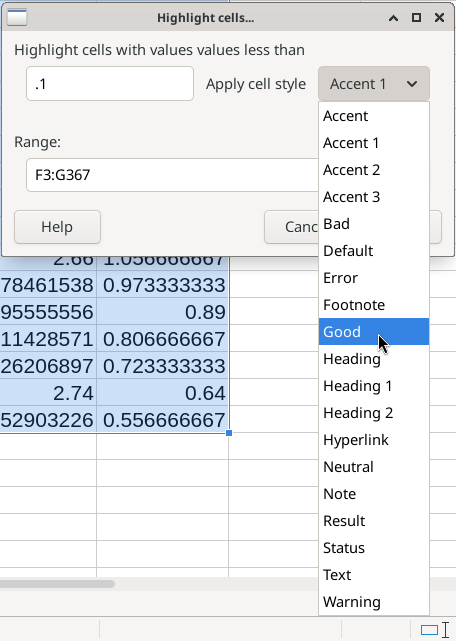
The cell styles in the list are pre-defined in LibreOffice Calc; the “Good” style applies a light green background to the selected cells. This made it a pretty easy process to scan through the 365 rows to find the green cells. In a few seconds, I found that 22 July, or “22/7,” was in fact the closest value to pi when you divide either “month by day” or “day by month”:

A few other dates that were also within the 0.1 difference were 31 October (31/10, or 3.1) and 25 August (25/3, or 3.125). But 22 July was the closest to pi, with a difference of just 0.002857143.
So if you prefer to write your dates as “day month,” then 22 July is a better calculation of pi. But I prefer the visual way to represent pi as “3/14” which looks like the value 3.14.