Skip to content

Both.org

News, Opinion, Tutorials, and Community for Linux Users and SysAdmins

Primary Menu
  • About Us
  • Computers 101
    • Hardware 101
    • Operating Systems 101
  • Linux
    • Why I use Linux
    • The real reason we use Linux
  • My Linux Books
    • systemd for Linux SysAdmins
    • Using and Administering Linux – Zero to SysAdmin: 2nd Edition
    • The Linux Philosophy for SysAdmins
    • Linux for Small Business Owners
    • Errata
      • Errata for The Linux Philosophy for SysAdmins
      • Errata for Using and Administering Linux — 1st Edition
      • Errata for Using and Administering Linux — 2nd Edition
  • Open Source Resources
    • What is Open Source?
    • What is Linux?
    • What is Open Source Software?
    • The Open Source Way
  • Write for us
    • Submission and Style guide
    • Advertising statement
  • Downloads
  • Home
  • Linux Makes Computing Accessible for Everyone
  • Accessibility
  • Linux

Linux Makes Computing Accessible for Everyone

Many of us need assistive technology for seeing and hearing in particular. There are other areas that we may not use but are useful to other folks who need help typing, pointing, clicking, and gesturing. And, fortunately for us, Linux makes computing accessible for everyone.
Don Watkins March 27, 2024 3 minutes read
linux_keyboard_desktop

When I started using Linux in the 1990s, I was in my mid-40s, and accessibility was not something I gave much thought to. However, as I’m pushing 72, my needs have changed. I purchased a brand new Darter Pro from System76 a few years ago. Its default resolution is 1920×1080, and it has a high DPI, too. The system came with Pop_OS!, which I had to modify to see the icons and text on display. Thank goodness that Linux on the desktop has become much more accessible than in the 1990s.

I need assistive technology for seeing and hearing in particular. There are other areas that I do not use but are useful to folks who need help typing, pointing, clicking, and gesturing. Various desktops, like Gnome, KDE, LXDE, XFCE, and others, handle these assistive technologies differently. These assistive tweaks are mostly available through the Settings dialog box or from keyboard shortcuts.

Text display

I need help with larger text, and on my Linux Mint Cinnamon desktop, I use these settings:
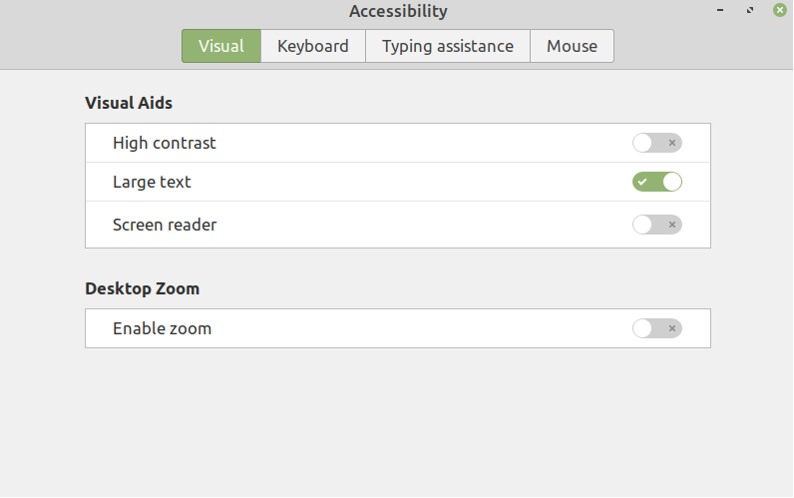
accessibility options  visual
Image by: Don Watkins (CC BY-SA 4.0)

I have also found Gnome Tweaks allows me to fine-tune text display sizes for my desktop experience. I adjusted the resolution of my display from its default of 1920×1080 to a more comfortable 1600×900. Here are my Layout settings:
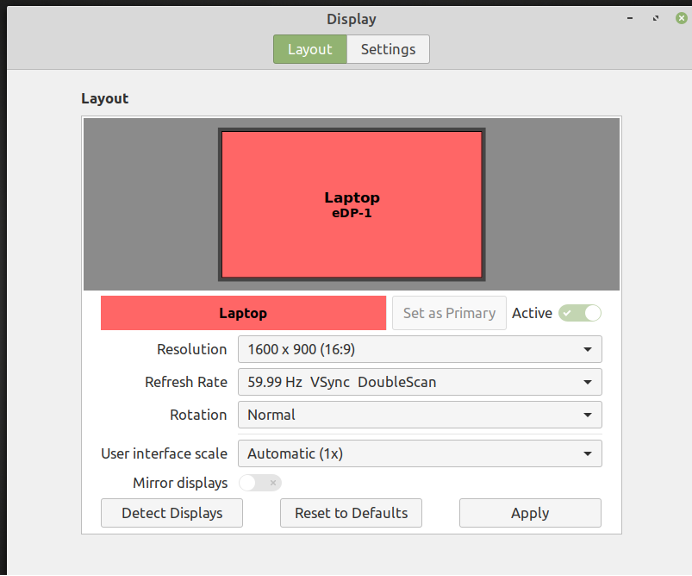
accessibility options  display
Image by: Don Watkins (CC BY-SA 4.0)

Keyboard supports

I do not need keyboard supports, but they are readily available, as seen below:
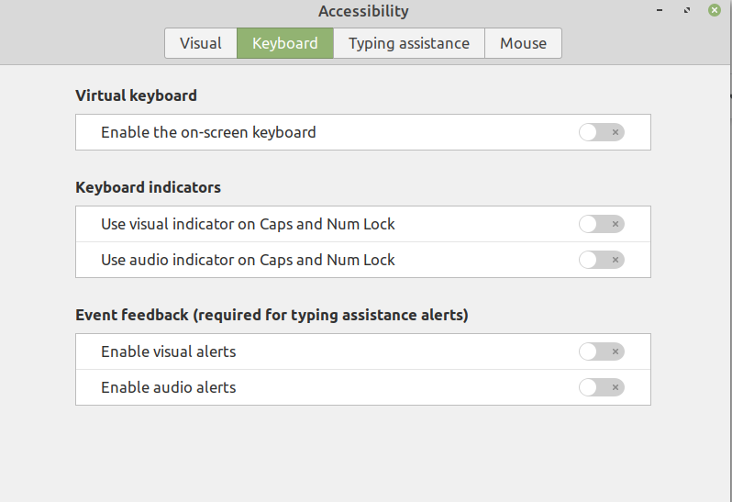
accessibility options  keyboard
Image by: Don Watkins (CC BY-SA 4.0)

More accessibility options

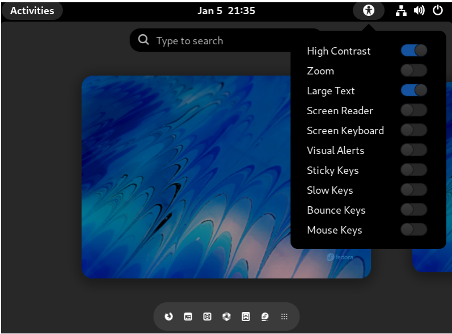
Accessibility access is familiar on Fedora 35, too. Open the Settings menu and choose to make the Always show Accessibility Menu icon visible on the desktop. I usually toggle Large Text unless I am on a large display. There are many additional options, including Zoom, Screen Reader, and Sound Keys. Here are some:
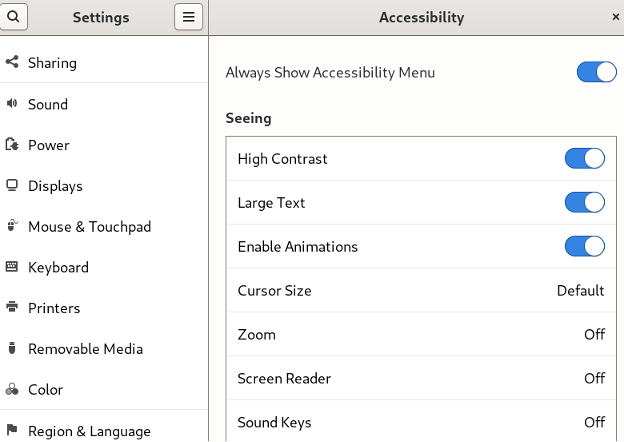
accessibility options  settings
Image by: Don Watkins (CC BY-SA 4.0)

Once the Accessibility Menu is enabled in the Settings menu in Fedora, it is easy to toggle other features from the icon in the upper-right corner:
accessibility options  desktop
Image by: Don Watkins (CC BY-SA 4.0)

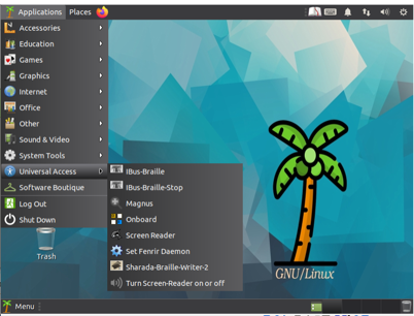
There are Linux distributions that are designed specifically for folks who need supports. Accessible Coconut is such a distribution. Coconut is based on Ubuntu Mate 20.04 and comes with the screen reader enabled by default. It is loaded with Ubuntu Mate’s default applications. Accessible Coconut is a creation of Zendalona, which specializes in developing free and open source accessibility applications. All of their applications are released with the GPL 2.0 license, including iBus-Braille. The distribution includes screen reader, print reading in various languages, six key input, typing tutor, magnification, eBook speaker, and many more.
accessibility options  desktop
Image by: Don Watkins (CC BY-SA 4.0)

The Gnome Accessibility Toolkit is an open source software library that is part of the Gnome Project and provides APIs for implementing accessibility. You can get involved with the Gnome Accessibility Team by visiting their wiki. KDE also maintains an accessibility project and a list of applications supporting the project. You can get involved with the KDE Accessibility project by visiting their wiki. XFCE provides resources for users, too. The Fedora Project Wiki also has a list of accessible applications that you can install on the operating system.

Linux for everyone

Linux has come a long way since the 1990s, and one great improvement is accessibility support. It’s good to know that as Linux users change over time, the operating system can change with us and make many different support options available.


Tags: Accessibility

Post navigation

Previous: A Linux user’s guide to Logical Volume Management
Next: How a Display Manager and a Window Manager Light Up Your Screen

Related Stories

malware-289389409
  • Anti-Malware
  • Linux

ClamAV and Bleachbit: One two punch for Linux security

Don Watkins May 25, 2026
f44-01-night
  • Fedora
  • Linux
  • Opinion

Fedora 44 Impressions

David Both May 22, 2026
programming_code_keyboard_orange_hands
  • Linux
  • Programming

Converting tabs to spaces

Jim Hall May 20, 2026

Random Quote

Unix is user-friendly. It just isn’t promiscuous about which users it’s friendly with.

— Steven King

Why I’ve Never Used Windows

On February 12 I gave a presentation at the Triangle Linux Users Group (TriLUG) about why I use Linux and why I’ve never used Windows.

Here’s the link to the video: https://www.youtube.com/live/uCK_haOXPFM 

Why there’s no such thing as AI

Last October at All Things Open (ATO) I was interviewed by Jason Hibbits of We Love Open Source. It’s posted in the article “Why today’s AI isn’t intelligent (yet)“.

Technically We Write — Our Partner Site

Our partner site, Technically We Write, has published a number of articles from several contributors to Both.org. Check them out.

Technically We Write is a community of technical writers, technical editors, copyeditors, web content writers, and all other roles in technical communication.

Subscribe to Both.org

To comment on articles, you must have an account.

Send your desired user ID, first and last name, and an email address for login (this must be the same email address used to register) to subscribe@both.org with “Subscribe” as the subject line.

You’ll receive a confirmation of your subscription with your initial password as soon as we are able to process it.

Administration

  • Log in
  • Entries feed
  • Comments feed
  • WordPress.org

License and AI Statements

Both.org aims to publish everything under a Creative Commons Attribution ShareAlike license. Some items may be published under a different license. You are responsible to verify permissions before reusing content from this website.

The opinions expressed are those of the individual authors, not Both.org.

You may not use this content to train AI.


Advertising Statement

Both.org does not sell advertising on this website.


Advertising may keep most websites running—but at Both.org, we’re committed to keeping our corner of the web ad-free. Both.org does not sell advertising on the website. Nor do we offer sponsored articles at this time. We’ll update this page if our position on sponsorships changes.

We want to be open about how the website is funded. Both.org is supported entirely by David Both and a few other dedicated individuals.


Copyright © All rights reserved. | MoreNews by AF themes.