Why I Installed Fedora Server on My Primary Workstation — and How
 David Both
Most of you know that I spent much of the last few weeks working on ways to reinstall Fedora on my primary workstation using BtrFS. I even had a plan in place, but that failed massively during testing on a VM. But I still wanted to reinstall Fedora on my workstation.
The Alternative
Neither the Fedora Xfce nor the Fedora Workstation installations support BtrFS with enough flexibility to do what I want, and they offered no other filesystem options, such as LVM/EXT4. As a result, I decided to use the Fedora Server Edition which has enough options for me. But it does produce only a minimal installation.
I spent a few days testing this option, along with the tools I’ve created over the years to make setting up a new Linux system much easier. As the Linux Philosophy for SysAdmins says, Automate Everything. I did make some modifications to the post-install RPM and script that I use to perform all those tasks.
The Installation
The Anaconda installer for Fedora Server Edition offers no Live USB option to allow users to test Linux. This tool is strictly an installer, but it offers more options than any other Fedora Edition, Lab, or Spin.
The first choice is the language to be used during the installation process. US English was already the default. I clicked on the Continue button to proceed to the Installation Summary shown in Figure 1. Items with a red message must be completed before the installation will be allowed to continue.
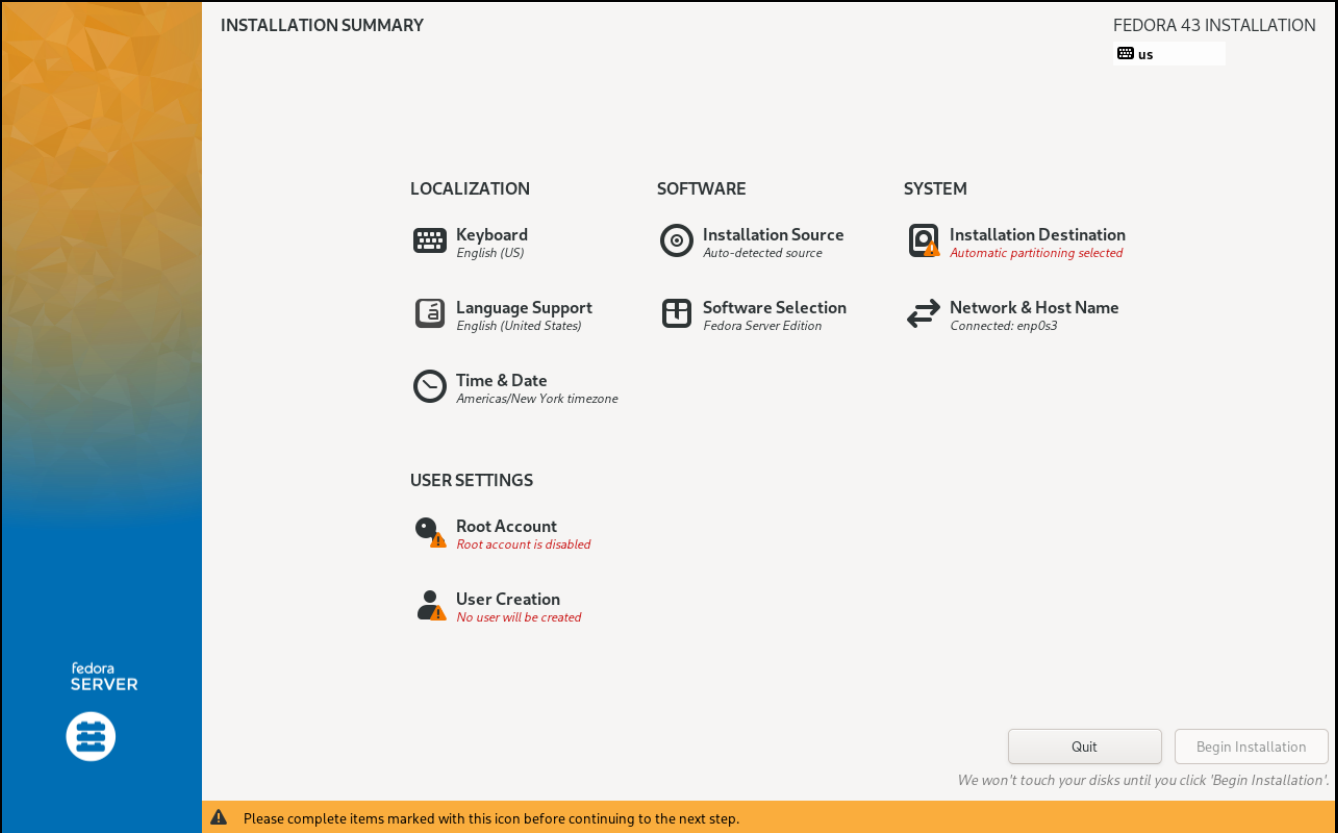
The time and date were pre-selected based on regional geolocation since the system was connected to the network. I set up the root account and one user account.
Fedora Server allows the installer to manually configure the network connection(s). I use DHCP for workstations on my network, so I didn’t need to do that. I always set the hostname, though, and create the root and user accounts and passwords.
Software
The Fedora Server Edition only provides for a very basic installation at best. This can be a matter of security because installing a lot of software that you’ll probably never need on a server, including a graphical desktop interface, expands the attack surface exposed to crackers. More software always means more bugs and more vulnerabilities. Therefore, in addition to any other reasons for choosing Fedora Server Edition, I know it will be a minimal and more secure starting point for creating my own system.
By default, the Fedora Server Edition was selected in the left panel of this menu. I chose the Fedora Custom Operating System as the best starting point for my needs, as seen in Figure 2.
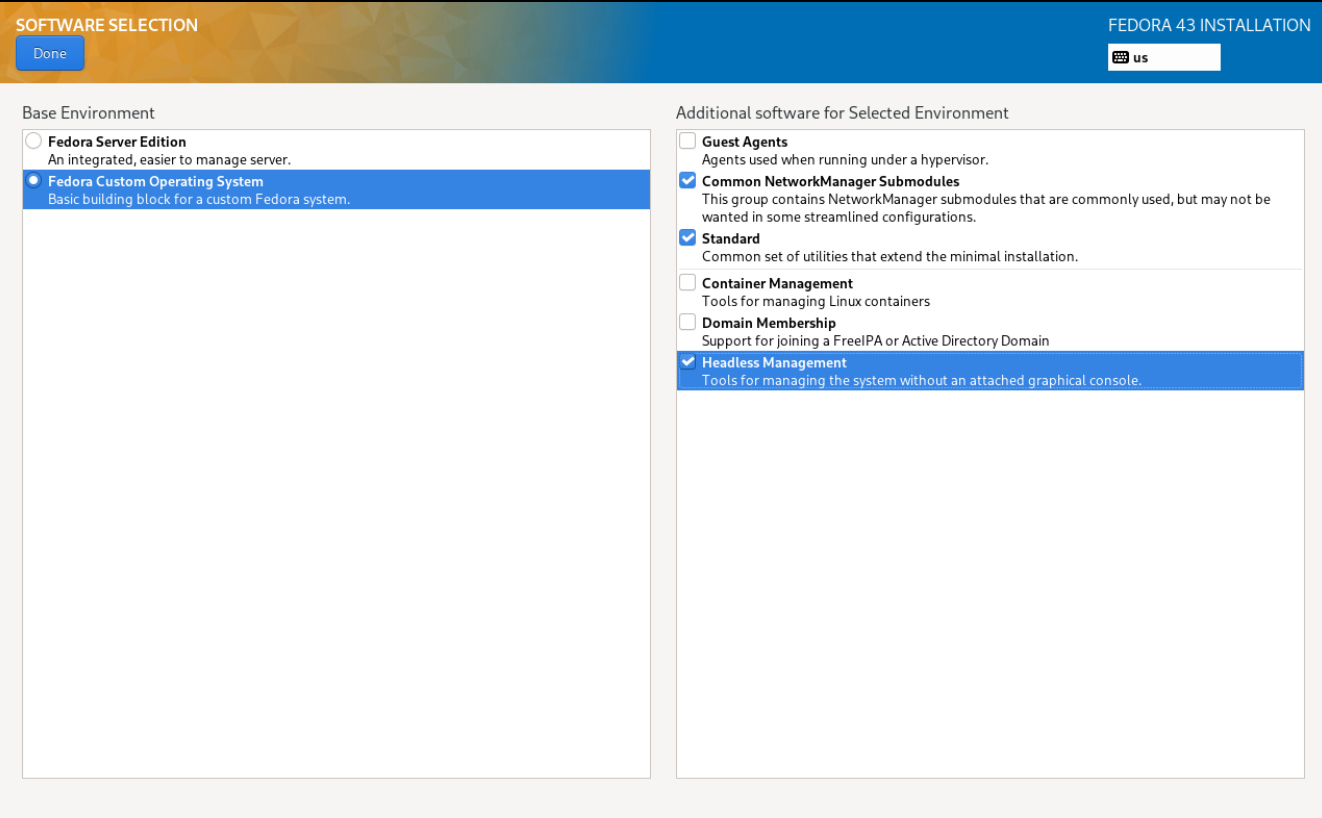
The additional software I chose in the right panel is what I need to produce a minimally usable command line only system. No GUI desktops here. And I don’t need or use containers, nor do I need to be part of a Windows domain.
Installation Destination
On the Installation Destination page, I selected the storage device on which to install Fedora. Figure 3, shows this on a VM, but except for the number of disk shown, this image from my VM is the same.
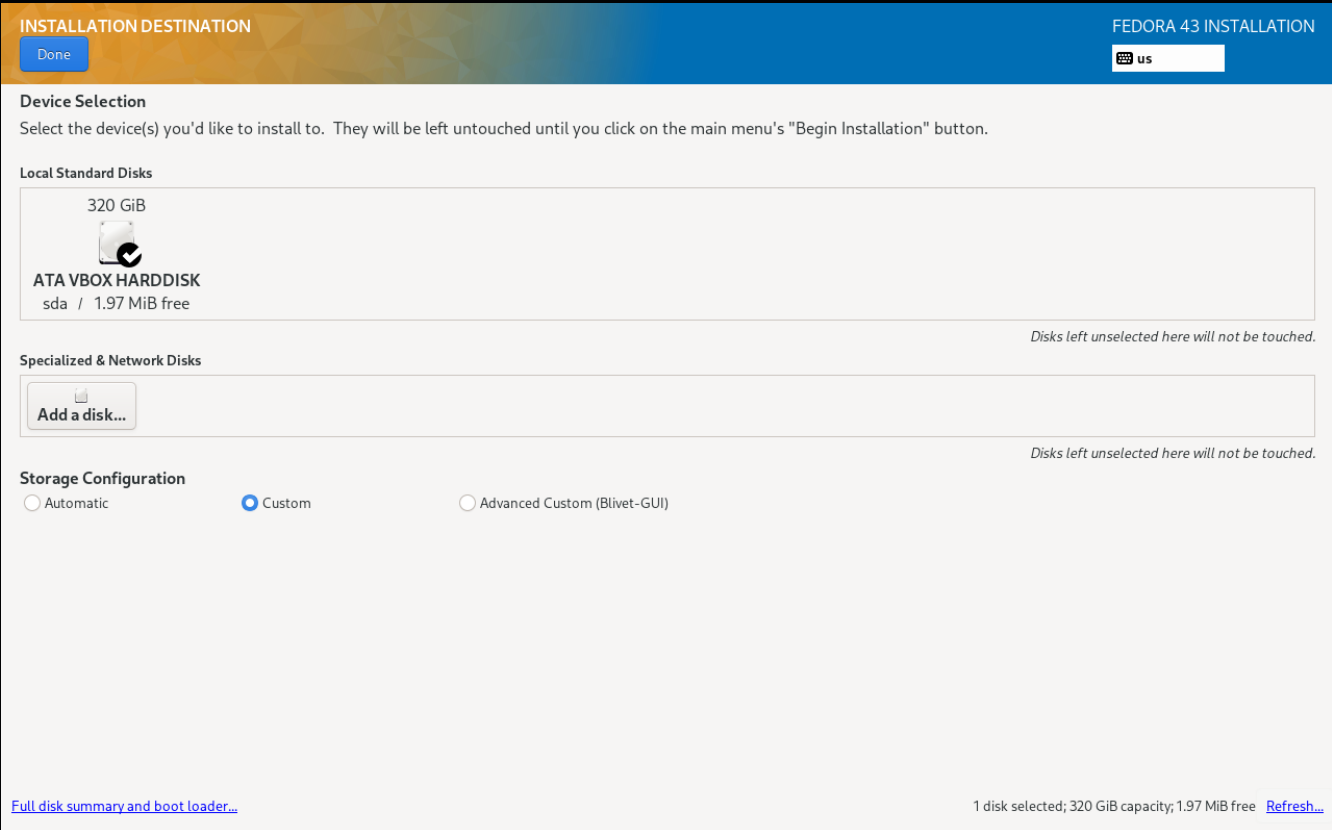
I also selected the Custom Storage Configuration. I then clicked the Done button, to move on to the Manual Partitioning menu. This displays, among other things, the default partitioning scheme as LVM. You’ll also see the There are 4 options for the Partitioning Scheme button.
- Standard Linux partitions
- Logical Volume Manager (LVM)
- LVM thin provisioning
- BtrFS
I always choose LVM. This is where you choose the partitioning scheme, not the filesystem to use.
You can choose the filesystem, BtrFS, EXT, xfs, and more, when you create the filesystems like / (root), /home, /var, and more. Note the dual usage of the term, filesystem, in the preceding sentence.
Figure 4 shows the Manual Partitioning menu after I’ve created some of the partitions I normally use.
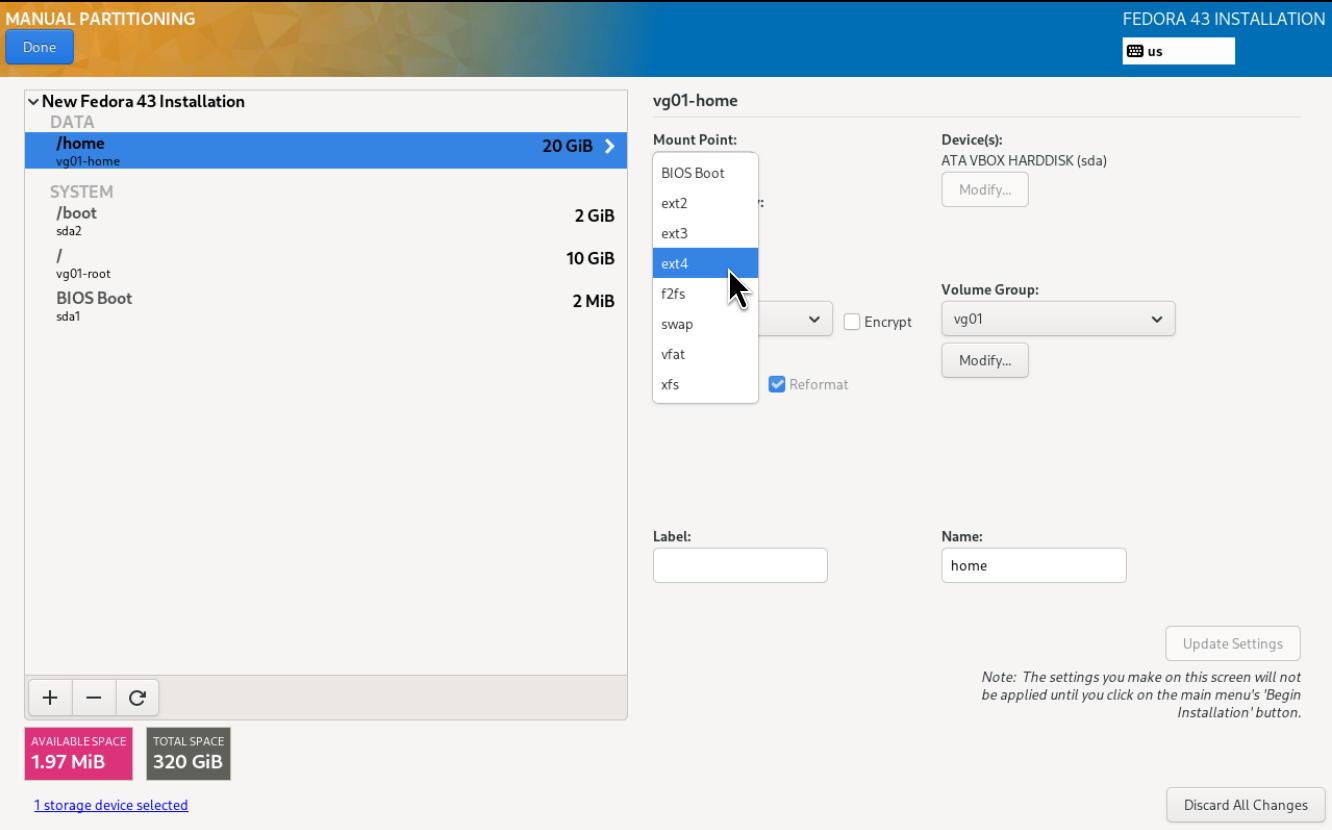
I always select LVM as the base for EXT filesystems rather than a Linux type 83 partition. This allows me the most flexibility for on-line changes such as extending the size of a volume and it’s EXT4 filesystem when the need arises. Which it will at some point.
I use the Modify button in the Volume Group (VG) section of the menu. I change the VG name to something a bit simpler than the default, like vg01.
That little menu also allows me to select how large I want the volume group to be, and I always choose as large as possible to ensure that it takes up the rest of the storage device after allowing for the BIOS and boot partitions. The filesystems I create do not typically fill up the entire volume group; that leaves the rest of the volume group for later expansion of the individual filesystems when needed.
One of the best things I discovered a long time ago about creating a filesystem and partitioning strategy, is to always — always — place /home on a separate storage device, or at the very least, on a partition of its own. Because of this, I was able to use the existing /home partition in my new installation without reformatting. That saved a lot of work I’d put into configuring and personalizing my Xfce desktop.
The complete partitioning scheme I typically use is shown in Figure 5.
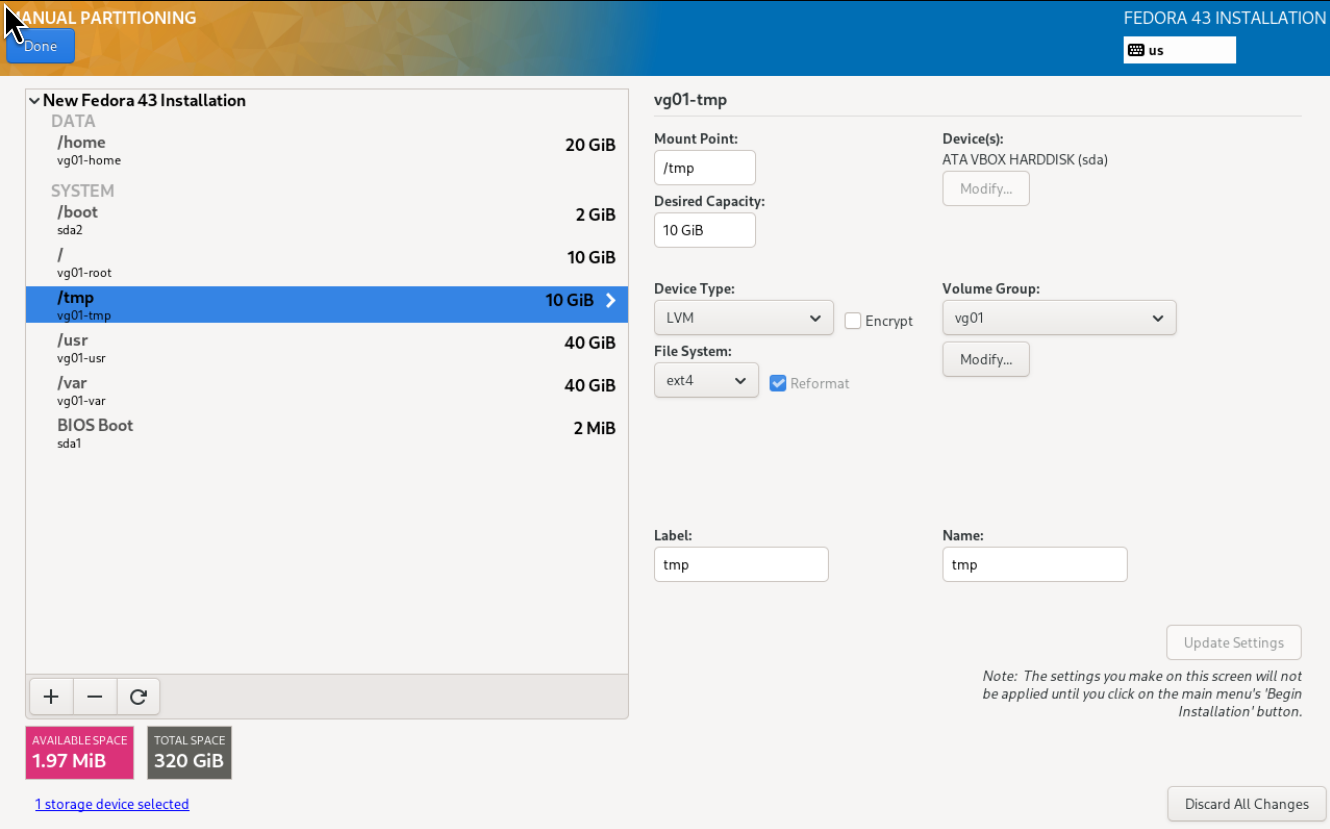
After manually completing the partitioning of the storage device, I clicked the Done button, verified that I wanted to wipe out the existing partitions, and started the installation.
After the Installation
The Fedora Server Edition installation only installs enough software for an experienced user or SysAdmin to use as a base on which to build a system that can perform whatever task might be needed.
But I was prepared for that. As I mentioned earlier in this article, I’m a lazy SysAdmin who believes in the Linux Philosophy for SysAdmins tenet, Automate Everything. I already had a completely automated post-install procedure that I’ve been using for years. I only needed to make a few changes to that automation in order to resolve a couple issues, and to ensure that I had included all the software I need.
It took me a few days prior to installing Fedora Server on my workstation, to test on a VM — I love those snapshots that make it easy to revert — and modify my post-installation tools to optimize them for the minimal installation I had as a starting point. The specifics of that post installation software are beyond the scope of this article, but it’s pretty basic. I created an RPM that installs some of the basic things I need, as well as a BASH script that allows me to choose various software I’ll need for a given installation. It also allows me to install one or more desktops and I chose Xfce.
I have found that the configuration files for some of the desktops can overlap and cause issues with other desktops. For now at least, I’ve only installed Xfce. I might install another desktop or two in the future, but my days of desktop hopping are probably behind me.
I’ve now been using my reinstalled workstation that’s based on the Fedora Server Edition for a couple weeks. It looks and feels much like it did before, but I no longer have a lot of software I’d accumulated over the years. Most of it I’d installed out of curiosity or because I thought it might be useful for a specific task.
My workstation is now quite minimal with only the specific software I need to do the things I need and want to do. I’ll probably find a few things that I missed and will install them as I need them, but I have no plans to install massive amounts of software just because it might be useful. I’ll do more research first, and then try it using a VM to see if it really meets a need.
Thoughts
This has been an interesting and fun exercise. I now have what for me is a minimal system that has only software that I know I use. I had few problems because I’ve been working with Linux for years, I already had a good deal of the automation I need to build a fully working desktop system from a minimal command line-only system.
The Custom Operating System choice gave me a great starting place from which to build a usable system with a decent GUI desktop without having a lot of software — or other desktops — I’ll never use. It allowed me to install and run my automated tools to create that system.
Installing Fedora Server Edition is not for anyone new to Linux. While it does have few choices to make, it always results in a very minimal Linux installation. Knowing what to install and how to install it in order to result in a usable Linux system is not something a newcomer should endure. Newcomers should definitely stick to one of the Fedora spins such as Xfce, MATE, KDE Plasma, or the Fedora Workstation Edition.
Experienced Linux users and SysAdmins will find Fedora Server Edition a great basic place to start building a customized Fedora system.
 Don Watkins
 Jim Hall