The FreeDOS editor makes it easy
 Jim Hall
Last Updated on December 24, 2025 by Jim Hall
Editing files is a staple on any operating system. Whether you want to make a note about something, write a letter to a friend, or update a system configuration file—you need an editor. And FreeDOS provides a user-friendly text editor called (perhaps unimaginatively) “FreeDOS Edit.”
A simple editor
The simplest invocation of FreeDOS Edit is just EDIT. This brings up an empty editor window. The patterned background suggests an empty “desktop”—a reminder that you aren’t editing any files.
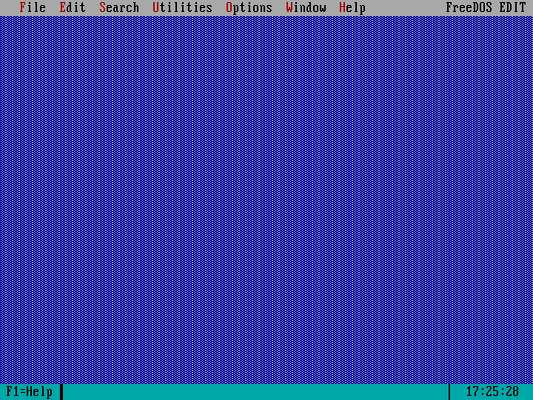
Like most DOS applications, you can access the menus in Edit by tapping the Alt key once on your keyboard. This activates the menu. After hitting Alt, Edit will switch to “menu” access and will highlight the “File” menu. If you want to access a different menu on the menu bar, use the left and right arrow keys. Press the down arrow or hit the Enter key to go “into” the menu.
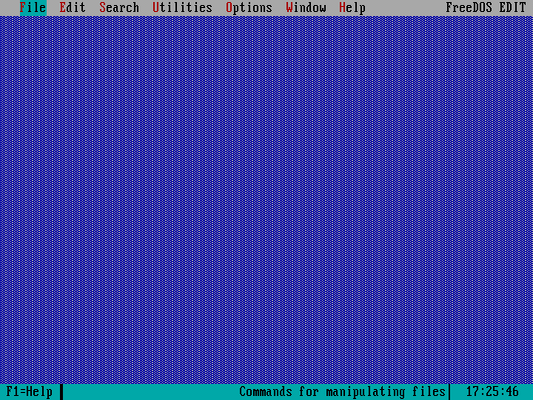
Do you notice that the first letter for each menu title is a different color? This highlight indicates a shortcut. For example, the “F” in the “File” menu is highlighted in red. So you could instead press Alt+F (Alt and F at the same time) and Edit will bring up the “File” menu.
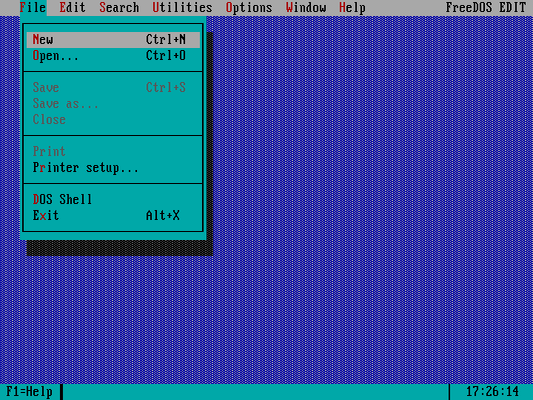
You can use the “File” menu to either start a new (empty) file, or open an existing file. Let’s start a new file by using the arrow keys to move down to “New” and pressing the Enter key. You can also start a new file by pressing Ctrl+N (Ctrl and N at the same time):
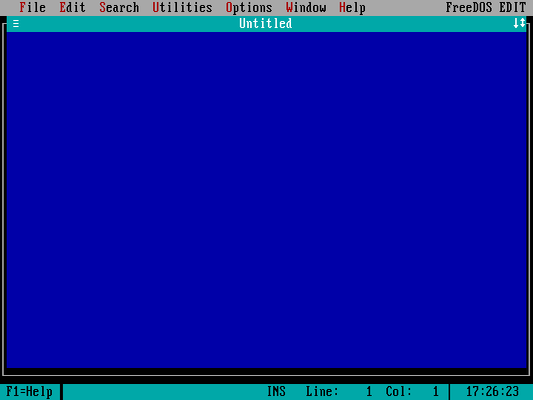
Editing files should be pretty straightforward after that. Most of the familiar keyboard shortcuts exist in FreeDOS Edit: Ctrl+C to copy text, Ctrl+X to cut text, and Ctrl+V to paste copied or cut text into a new location. If you need to find specific text in a long document, press Ctrl+F. To save your work, use Ctrl+S to commit changes back to the disk.
Useful for programming
If you’re a programmer, you may find the extended ASCII table a useful addition. DOS systems supported an “extended” ASCII character set commonly referred to as “code page 437.” The standard characters between 0 and 127 include the letters A through Z (uppercase and lowercase), numbers, and special symbols like punctuation. However, the DOS extended characters from code 128 to code 255 included foreign language characters and “line drawing” elements. DOS programmers often made use of these extended ASCII characters, so FreeDOS Edit makes it easy to view a table of all the ASCII codes and their associated characters.
To view the ASCII table, use the “Utilities” menu and select the “ASCII Table” entry. This brings up a window containing a table.
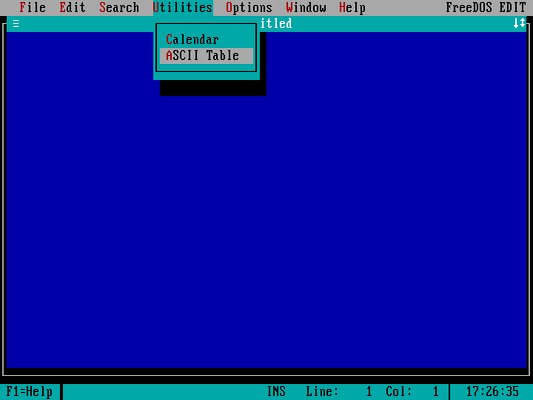
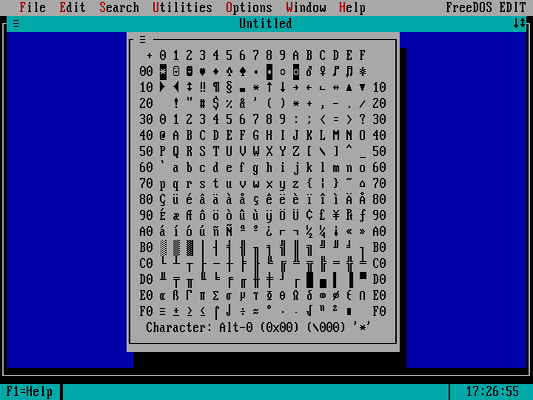
Along the left, the table shows the hexadecimal values “00” through “F0,” and the top shows the single values “0” through “F.” These provide a quick reference to the hexadecimal code for each character. For example, the item in the first row (00) and the first column (0) has the hexadecimal value 00 + 0, or 0x00 (the “NULL” value). And the character in the fifth row (40) and the second column (1) has the value 40 + 1, or 0x41 (the letter “A”).
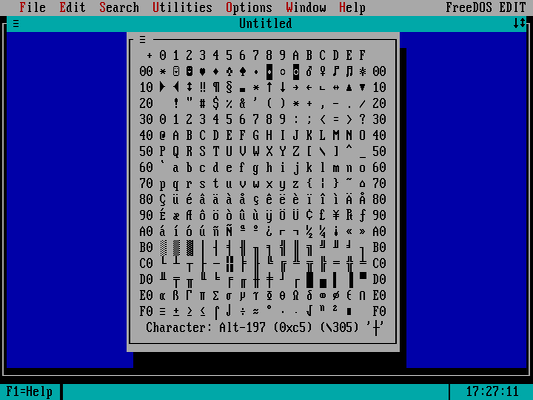
As you move the cursor through the table to highlight different characters, you’ll see the values at the bottom of the table change to show the character’s code in decimal, hexadecimal, and octal. For example, moving the cursor to highlight the “line intersection” character at row C0 and column 5 shows this extended character code as 197 (dec), 0xc5 (hex), and 305 (oct). In a program, you might reference this extended character by typing the hex value 0xc5, or the octal “escape code” \305.
Feel free to explore the menus in Edit to discover other neat features. For example, the “Options” menu allows you to change the behavior and appearance of Edit. If you prefer to use a more dense display, you can use the “Display” menu (under “Options”) to set Edit to 25, 43, or 50 lines. You can also force Edit to display in monochrome (white on black) or reversed mode (black on white).