A gentle introduction to FreeDOS commands
 Jim Hall
If you’ve tried FreeDOS and have any familiarity with Linux, you might have been confused a bit by the command line. The DOS commands are slightly different from how you might use the Linux command line, so getting around on the command line requires learning a few new commands.
But it doesn’t have to be an “all new” experience for Linux users. We’ve always included some standard Unix commands in FreeDOS, in addition to the DOS commands that are already similar to Linux. So if you’re already familiar with the Linux command line, try these commands to help ease into FreeDOS:
Getting Around
Use the CD command to change directory in the FreeDOS filesystem. Like all DOS commands, the command name is actually case insensitive, so you can use CD or cd it will work the same; I’ll use lowercase for these examples. The usage is basically the same on FreeDOS as it is on Linux. To change into a subdirectory called apps, type cd apps. Or type cd .. to go back to the previous directory.
One key difference when navigating through directories and paths is that on FreeDOS, the directory separator is \ (“backslash”) instead of / (“forward slash”) that you use on Linux. For example, let’s say you were in the \devel directory and you wanted to move to the \fdos directory. Both of those are at the same “level” relative to the root directory. So you could type cd ..\fdos to “back up” one directory level (with ..) and then “go into” the fdos directory.
To change to a new directory, you could instead give the full path with the leading backslash. This is handy if you are already deep into another path, and just want to switch immediately to the new location. For example, you can type cd \temp to change to the \temp directory.
In FreeDOS, like most DOS systems, you can see your current path as part of the DOS prompt. On Linux, your prompt is probably something like $. On FreeDOS, the prompt lists the current drive, the current path within that drive, then > as the prompt.
Listing and Displaying Files
On Linux, the standard command to list files in the current directory is the ls command. On FreeDOS, the command is named dir.
But if you prefer the behavior that you get with ls, you can use an alias to use different command line options to the dir command to make it look more like the output from ls.
To create an alias to another command, use the built-in alias command. For example, use this command to define an alias for ls that will display a directory listing in a similar way to using ls on Linux:
C:\>alias ls=dir /o:ne /w /b /l
C:\>ls
[apps]         command.com    [devel]        fdauto.000     fdauto.bak
fdauto.bat     fdconfig.sys   [freedos]      kernel.sys     [util]
C:\>ls freedos
[.]            [..]           [appinfo]      [bin]          boot.bss
boot.mbr       [cpi]          [doc]          [help]         [nls]
[packages]     [source]       [temp]         version.fdi
The command option format is slightly different on FreeDOS than on Linux. On Linux, you start options with a hyphen character (-). But on FreeDOS, options start with a forward slash. The alias command above uses the slash character. In my alias example, the /o:ne option tells dir to order (o) in a certain way: sort any files and directories by name (n) and then by extension (e). Using /w says to use a “wide” directory listing, /b uses a “bare” display without the other information that dir usually prints, and /l will display files and directories in lowercase.
Note that the command-line options for the FreeDOS dir command are quite different from the options to Linux ls, so you can’t use this ls alias exactly like you would on Linux. For example, typing ls -l with this alias on FreeDOS will result in a “File not found” error, because the underlying FreeDOS dir command will be unable to find a file called -l. But for basic “see what files I have on my system,” this ls alias is good enough to help Linux users get started with FreeDOS.
Similarly, you can create an alias for the FreeDOS type command, to act like the Linux cat command. Both programs display the contents of a text file. While type doesn’t support the command-line options you might use under Linux, the basic usage to display a single file will be the same.
C:\>alias cat=typeOther Unix-like Commands
FreeDOS includes a selection of other common Unix-like commands, so Linux users will feel more at home. To use these Linux commands on FreeDOS, you may need to install the Unix Like Tools packages using the FDIMPLES package manager. You can find this package group on the BonusCD if you use the CD images, or as part of the FullUSB image if you used the USB installer.
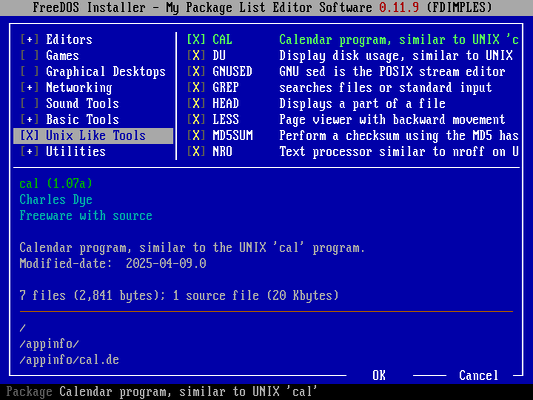
Not all of the Unix-like utilities work exactly like their Linux counterparts. That’s why we call them “Unix-like.” You might want to check the compatibility if you’re using some esoteric command-line options, but typical usage should be fine. Start with these common Unix-like commands on FreeDOS:
The cal command is the standard Unix calendar program. For example, to display the calendar for the current month, just type cal. To view a specific month, give the month and year as arguments:
C:\>cal 6 1994

      June 1994
Su Mo Tu We Th Fr Sa
          1  2  3  4
 5  6  7  8  9 10 11
12 13 14 15 16 17 18
19 20 21 22 23 24 25
26 27 28 29 30
View your disk usage with the du command. This is a simple version of the Linux disk usage command and doesn’t support any command-line options other than a path.
C:\>du apps
    158784 C:\APPS\FED
         0 C:\APPS
Total from C:\APPS is 158784
The head command displays the first few lines of a file. For example, this is a handy way to determine if a file contains the correct data.
C:\>head fdauto.bat
@ECHO OFF
set DOSDIR=C"\FDOS
set LANG=EN
set TZ=UTC
set PATH=%dosdir%\BIN
if exist %dosdir%\LINKS\NUL set PATH=%path%;%dosdir%\LINKS
set NLSPATH=%dosdir%\NLS
set HELPPATH=%dosdir%\HELP
set TEMP=%dosdir%\TEMP
set TMP=%TEMP%
To view an entire file, use the more command, which is the default file viewer on FreeDOS. This displays a file one screenful at a time, then prints a prompt to press a key before displaying the next screenful of information. The more command is a very simple file viewer; for a more full-featured viewer like you might use on Linux, try the less command which has the ability to scroll “backwards” through a file, in case you missed something. You can also search for specific text.
If you have a lot of directories in your program PATH variable and aren’t sure where a certain program is running from, you can use the which command. This scans the program path variable, and prints the full location of the program you are looking for.
C:\>which less
less    C:\>FDOS\BIN\LESS.EXE
FreeDOS includes other Unix-like commands that you might use in other, more specific situations. Try them out and see if they fit your needs.
bc– Arbitrary precision numeric processing languagesed– Stream editorgrep– Search a text file using regular expressionmd5sum– Generate an MD5 signature of a filenro– Simple typesetting using nroff-like macrossleep– Pause the system for a few secondstee– Save a copy of a command-line streamtouch– Modify a file’s timestamptrch– Translate single characters (like Linuxtr)uptime– Report how long your FreeDOS system has been running
FreeDOS at your command
FreeDOS is a great way to run classic DOS apps, but you don’t have to re-learn the commands to use it effectively. If you’re more familiar with the Linux command line, set up a few aliases and install the Unix-like tools to make your FreeDOS command line feel more familiar.
Adapted from FreeDOS commands for Linux fans by Jim Hall
 David Both

 Don Watkins