Don Watkins
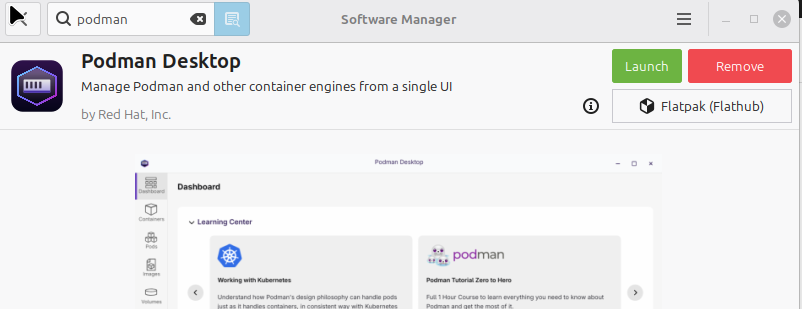
I regularly use VirtualBox to test new Linux distributions, Windows versions, and sometimes set up WordPress, Moodle, or another content management system. Listening to one of my favorite Linux podcasts recently, I decided I wanted to learn more about containers, which I know dreadfully little about. I decided to use Podman, although I have used Docker on Linux and macOS in the past. This time, I installed Podman on Linux Mint Cinnamon 22.3 using the software center and the Flatpak install.
Since I know very little about containers and how to create them, I used Google Gemini to provide the steps needed to build a WordPress blog.
I followed the directions provided and created two volumes. I opened the terminal and entered the following commands:
podman volume create wp_db_data
podman volume create wp_core_data
Next, create the pod wrapper. You need to expose port 8080 on your host machine and route it to port 80 inside the pod where WordPress will be listening. The following command sequence worked.
podman pod create --name blog-pod --publish 8080:80Next, I had to create a database inside the newly created blog.
podman run -d --pod blog-pod \
  --name wp-db \
  -v wp_db_data:/var/lib/mysql:Z \
  -e MYSQL_ROOT_PASSWORD=your_root_password \
  -e MYSQL_DATABASE=wordpress_db \
  -e MYSQL_USER=wp_user \
  -e MYSQL_PASSWORD=your_wp_password \
  docker.io/library/mariadb:latest
After that, I created a database within the newly established blog. I ran the WordPress container in the same pod, allowing WordPress to connect to the database easily.WordPress can easily connect to the database using 127.0.0.1 or localhost
podman run -d --pod blog-pod \
  --name wp-web \
  -v wp_core_data:/var/www/html:Z \
  -e WORDPRESS_DB_HOST=127.0.0.1 \
  -e WORDPRESS_DB_NAME=wordpress_db \
  -e WORDPRESS_DB_USER=wp_user \
  -e WORDPRESS_DB_PASSWORD=your_wp_password \
  docker.io/library/wordpress:latest
Then I opened my web browser and pointed it to http://localhost:8080. Then I selected the language for my newly created blog, filled in the new user, selected a strong password, and saved it. Then I logged in, added a theme, and was ready to start blogging and learning more about creating and using containers with Podman.
Diving into container technology with Podman has been a rewarding experience that has expanded my understanding of managing applications in isolated environments. By successfully setting up a WordPress blog, I’ve gained valuable insights into the practicality and efficiency of containers. This journey not only enhanced my technical skills but also sparked my curiosity to explore further possibilities within the container ecosystem.Categories

 Jim Hall