How to tune the Linux kernel with the /proc filesystem
 David Both
Last Updated on April 23, 2026 by David Both
Image by David Both: CC-by-SA 4.
Linux is an amazing and powerful operating system. More specifically, the Linux kernel is the source of many of its superpowers.
I’ve been using Linux for 25 years and have used a lot of versions of the Linux kernel. I have even compiled the kernel a time or two in class and a few times just for grins. Most users and even sysadmins never need to compile the kernel. In most distributions, the default compile is perfectly fine for most use cases. But there are times when a bit of tuning is in order. The good news is that the kernel can be tuned easily without recompiling it or even rebooting.
This article is not intended to be a detailed exposure of all the kernel data available for viewing or modification. It is an homage to an incredible piece of software that allows the flexibility to make significant functional changes while it’s in use.
What is the /proc filesystem?
The /proc filesystem is one of the most critical components of the kernel. It is a virtual filesystem that exists only in memory. The /proc filesystem is defined by the Linux Filesystem Hierarchical Standard (FHS) as the location for Linux to store information about the system, the kernel, and all processes running on the host. It is intended to be a place for the kernel to expose information about itself to facilitate access to data about the system for programmers, developers, and sysadmins.
Collecting this data does not impact the overall performance of a Linux host. The Linux kernel is designed to continuously collect and store the performance data that can be accessed and displayed by any and all performance monitoring tools. The tools access that data to read it and then manipulate and display it in a meaningful format. Because this data is already stored in the /proc filesystem, it avoids complex and time-consuming function calls to the kernel’s internals.
Some of the data in the /proc filesystem is used to tune the kernel. The values in those files can be easily changed by simple and familiar Linux tools.
Viewing the data
When used as a window into the state of the operating system and its view of the system and hardware, the kernel provides easy access to virtually every bit of information you might want as a sysadmin. All the cool tools that sysadmins use to view the status of the operating system and the kernel, access that data from the /proc filesystem.
Start by viewing some of the available data. First, make /proc the present working directory (PWD) and list the contents. Many of these are directories and others are files. I use the Konsole terminal emulator. The default color for directories is blue, and the files are the terminal text color, which I set to amber. Symbolic links are cyan.
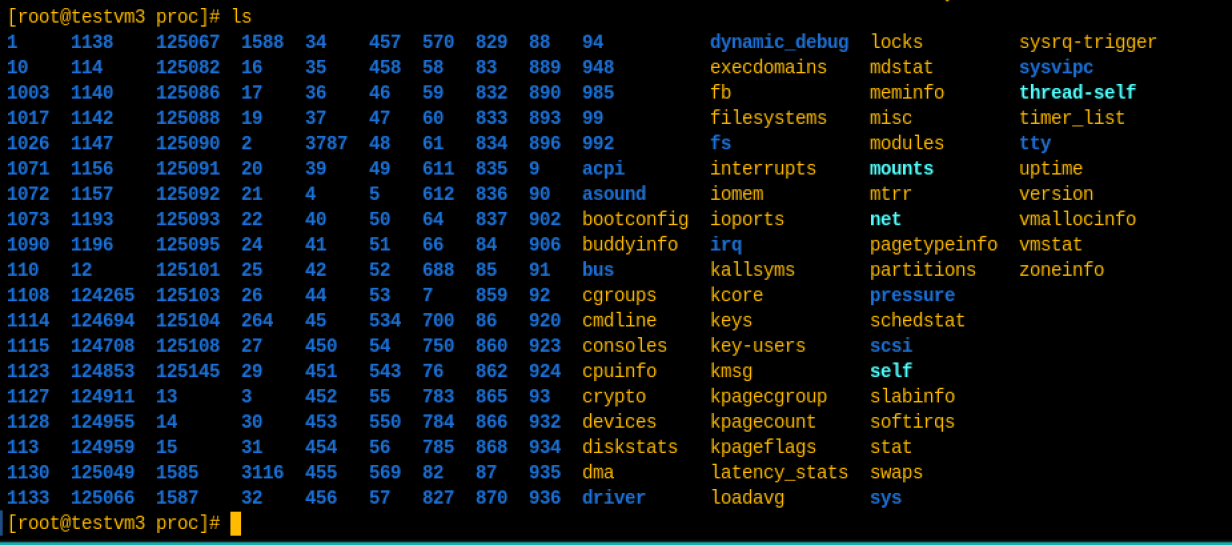
Figure 1: A listing of the /proc directory. (David Both, CC BY-SA)
All the numeric directories represent the process ID (PID) of a process and contain the data required for the kernel to manage that process. The named files—as opposed to named directories—contain data pertaining to the file’s name. The named directories usually contain a series of files and subdirectories related to the directory’s name.
One example is the stat file. This file contains the statistical data pertaining to the system’s CPUs. You can use the cat command to view that file. Do that multiple times, or use the following command as root to watch the file as it changes:
# watch cat /proc/statThe watch command repeats the command every two seconds by default until you use Ctrl+C to break out. You could also specify a different interval. Read the man page for that information.
Another interesting file is proc/meminfo. Try watching that one for a few minutes. All of my favorite problem determination and monitoring tools use the contents of /proc to obtain their data. Look at the free command, for instance:
# free
               total        used        free      shared  buff/cache   available
Mem:        32726880      727108    31104776        1560      894996    31610372
Swap:       16777208           0    16777208
This next command displays the results of the free command as well as the meminfo file at the same time. Be sure to get the single and double quotes correct. The line of # symbols provides a bit of visual separation between the outputs of the two commands and can be as long as you need it to be to provide enough of a visual clue for yourself. I shortened it here so that it all shows up on a single line.
# watch 'free ; echo "###########" ; cat /proc/meminfo | head -20'Interpreting the data that is output from these commands is outside the scope of this article but can be found in Section 1.14, the /proc page of the LFSH description, on the Linux Documentation Project website. The man 5 proc page also has good descriptions of the contents of all of the /proc files.
Kool kernel tools
The free command is just one of the many tools that allow you to view the status of the running kernel in real time.
Others I like are top, htop, and glances, which all show a comprehensive view of the running system. Using somewhat different layouts and varying options to configure how the data is displayed, they can all show memory and swap usage; individual and total CPU usage; a list of system and user processes; and data about each process such as memory, CPU usage, total run time for the process, the PID and the parent process ID (PPID).
These three tools, along with the renice command, can also renice or kill running processes. Renicing a process changes the data in the /proc/PID/stat file. The data in this file are complex, and the file is not writable by editors or redirection, so it’s necessary to use the renice tools that are available.
Other tools I use frequently are lsblk, iptop, lsusb, lspci, and other related tools that list and manage hardware. Any of the many tools that manage processes, memory, networking, attached hardware, and everything else use the /proc filesystem to do so.
Making changes to the running kernel
The /proc filesystem is also designed to provide access to modify many configuration values when necessary to allow you to tune the running system without needing to perform reboots after making changes. This is an incredibly powerful tool.
One of the first things I need to tune on the Linux host I use for a router is to enable it to be a router. This is accomplished by setting the contents of the file /proc/sys/net/ipv4/ip_forward to 1. There are multiple methods for making changes to the kernel-tuning variables, and all of them simply change the value present in the /proc filesystem. The first two methods are only temporary and must be performed after every reboot.
First, I can use the command:
# echo 1 > /proc/sys/net/ipv4/ip_forwardThe sysctl command does exactly the same thing: it sets the value of that file to 1:
# sysctl -w net.ipv4.ip_forward = 1You can check the value of any file:
# sysctl net.ipv4.ip_forward
net.ipv4.ip_forward = 1
or:
# cat sysctl net.ipv4.ip_forward
net.ipv4.ip_forward = 1
But all of these changes are only transient, and they reset to their default values at each boot.
Making the changes permanent
Making these changes permanent is quite easy. Just add the following lines to the /etc/sysctl.conf file or to a new file in /etc/sysctl.d. These files are read and used to set kernel parameters at boot time. You can see some of the other kernel options I have set to meet my needs in this file:
################################################################################
#                            Local-sysctl.conf                                 #
#                                                                              #
# Local kernel option settings.                                                #
# Install this file in the /etc/sysctl.d directory.                            #
#                                                                              #
# Use the command: sysctl -p /etc/sysctl.d/local-sysctl.conf to activate.      #
#                                                                              #
################################################################################
################################################################################
# Local Network settings - Specifically to disable IPV6                        #
################################################################################
net.ipv6.conf.all.disable_ipv6 = 1
net.ipv6.conf.default.disable_ipv6 = 1
################################################################################
# And to make this a router                                                    #
################################################################################
net.ipv4.ip_forward = 1
################################################################################
# Virtual Memory Swappiness                                                    #
################################################################################
# Set swappiness
vm.swappiness = 13
For more details about performing these tasks, see my Opensource.com article, How I disabled IPv6 on Linux.
Final thoughts
The /proc filesystem is the “single point of truth” (SPOT) for obtaining information about the running system and changing the kernel-tuning variables. I use it frequently, either directly or indirectly, using the common GNU utilities and other tools already provided in every Linux distribution.
The ability to tune the Linux kernel while it is running is one of the most powerful aspects of using Linux. It enables making changes to the kernel parameters while it is running and without requiring a reboot.
Resources
- Section 1.14, the /proc page of the LFSH description, at the Linux Documentation Project website.
- The
man 5 procpage also has good descriptions of the contents of all of the/procfiles. - Kernel.org has a long list of kernel parameters and a huge amount of other information about the Linux kernel.

 Jim Hall
 Don Watkins