Skip to content

Both.org

News, Opinion, Tutorials, and Community for Linux Users and SysAdmins

Primary Menu
  • About Us
  • Computers 101
    • Hardware 101
    • Operating Systems 101
  • Linux
    • Why I use Linux
    • The real reason we use Linux
  • My Linux Books
    • systemd for Linux SysAdmins
    • Using and Administering Linux – Zero to SysAdmin: 2nd Edition
    • The Linux Philosophy for SysAdmins
    • Linux for Small Business Owners
    • Errata
      • Errata for The Linux Philosophy for SysAdmins
      • Errata for Using and Administering Linux — 1st Edition
      • Errata for Using and Administering Linux — 2nd Edition
  • Open Source Resources
    • What is Open Source?
    • What is Linux?
    • What is Open Source Software?
    • The Open Source Way
  • Write for us
    • Submission and Style guide
    • Advertising statement
  • Downloads
  • Home
  • Serial communication on Linux
  • Linux
  • System Administration
  • Tips and tricks
  • Tools

Serial communication on Linux

Learn to use the ancient serial communications hardware and software methods that are needed even today in many data centers.
Alan Formy-Duval March 25, 2024 3 minutes read
console_port
1

Systems engineers often spend a lot of time in a data center configuring servers and other computing and networking equipment. If your role includes these activities, I recommend two items to keep in your toolkit; a RS-232 serial-to-USB converter and a standard DB-9 serial cable. These can be indispensable when you have no other way to access a device. You may need to deploy a new router that has not yet been configured for example. You might need to troubleshoot a firewall appliance that has become inaccessible via SSH. In a “lights-out” environment, particularly, new servers may have a management card that needs to be initialized. A serial connection provides a direct path to a console for accomplishing these tasks.
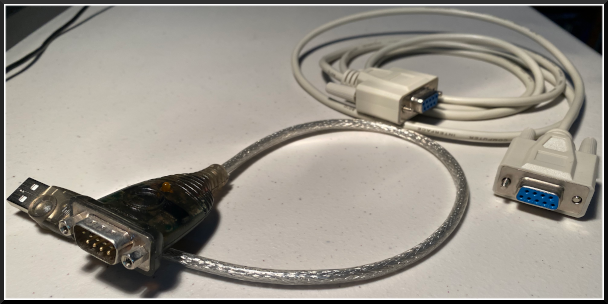
I will use a SOHO firewall appliance in this example. This device has no mouse, keyboard, monitor, or other GUI capabilities. Equipment like this is generally described as “headless.”

Serial communications

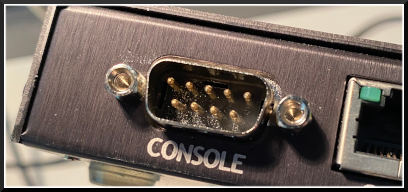
To connect with a device over serial, you need hardware that supports the RS-232 protocol. This is typically a nine-pin DB-9 serial port, often labeled serial, comm, or console. Most older computers have at least one. Most servers still have them, but most laptops and desktops don’t any longer.

Find the serial port

If your system doesn’t already have a serial port, you’ll need to use a converter like the one I mentioned. When you plug in the PL2303 converter to a USB port on your computer, the Linux kernel registers it as a USB TTY device. There are several commands that you can use to query your system for its serial port configuration. Here are a few examples:

# dmesg |grep tty
[252464.891372] usb 6-1: pl2303 converter now attached to ttyUSB0

# setserial -g /dev/ttyUSB[0123]
/dev/ttyUSB0, UART: 16654, Port: 0x0000, IRQ: 0

# ls /dev/serial/by-id/
usb-Prolific_Technology_Inc._USB-Serial_Controller_D-if00-port0

In my case, it detects the converter as a pl2303 converter (or a Prolific Technology USB serial controller).

Connect a serial cable

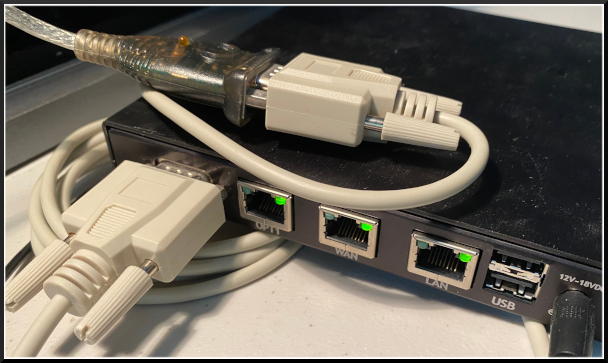
Connect your serial cable between the converter and the serial port on the device.
Log in with tio

Over the years, I’ve used different tools, such as Minicom and Screen. Tio is a newer and simpler tool described as “a simple TTY terminal I/O application.” It is available on most Linux distributions, FreeBSD, and OpenWRT, as well as a Snap package. I used the standard package tool to install version 1.32 onto my Red Hat Enterprise Linux 8.1 server:

# dnf info tio
# dnf install tio

Initialize the connection with the tio command. In my experience, Tio didn’t need any advance configuration; it worked out of the box. Be sure that you have the correct device path, as shown above:

# tio /dev/ttyUSB0

# tio /dev/serial/by-id/usb-Prolific_Technology_Inc._USB-Serial_Controller_D-if00-port0
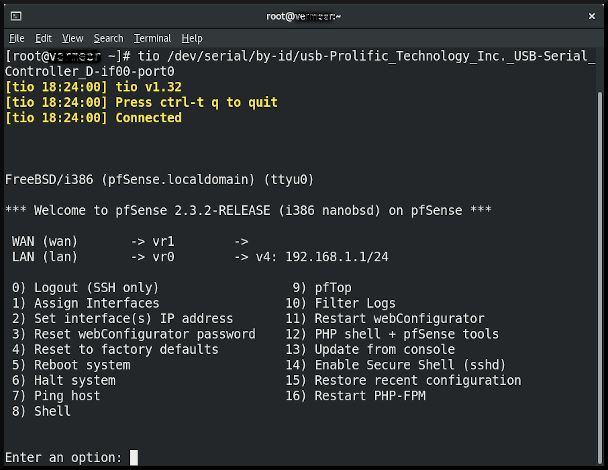
You can use the Ctrl+t command sequence to interact with Tio. For instance, Ctrl+t+? will list available commands, and Ctrl+t+q quits Tio and takes you back to your Linux command prompt.

Conclusion

We rarely think about or even use serial communications these days, but it is still useful. Data center people still need to be familiar with it. Data centers can be remote, and once inside, you’ll want to make sure you have all the proper tools. Besides a good Linux laptop, of course, I recommend the items above for managing those serial-enabled devices when necessary.

This work is licensed under a Creative Commons Attribution-Share Alike 4.0 International License.

Tags: Serial Communications

Post navigation

Previous: Retro-Fun with CRT
Next: A Linux user’s guide to Logical Volume Management

Related Stories

programming_code_keyboard_orange_hands
  • Linux
  • Programming

Converting tabs to spaces

Jim Hall May 20, 2026
Photo by Scott Rodgerson on Unsplash
  • Cloud
  • Digital sovereignty
  • Linux
  • Open Source
  • Security

Digital sovereignty

Seth Kenlon May 15, 2026
Puzzle pieces coming together to form a computer screen
  • Fortran 77
  • History
  • Linux

A look back: f2c

Jim Hall May 13, 2026

Random Quote

It is a capital mistake to theorize before you have all the evidence. It biases the judgment.

— Sherlock Holmes

Why I’ve Never Used Windows

On February 12 I gave a presentation at the Triangle Linux Users Group (TriLUG) about why I use Linux and why I’ve never used Windows.

Here’s the link to the video: https://www.youtube.com/live/uCK_haOXPFM 

Why there’s no such thing as AI

Last October at All Things Open (ATO) I was interviewed by Jason Hibbits of We Love Open Source. It’s posted in the article “Why today’s AI isn’t intelligent (yet)“.

Technically We Write — Our Partner Site

Our partner site, Technically We Write, has published a number of articles from several contributors to Both.org. Check them out.

Technically We Write is a community of technical writers, technical editors, copyeditors, web content writers, and all other roles in technical communication.

Subscribe to Both.org

To comment on articles, you must have an account.

Send your desired user ID, first and last name, and an email address for login (this must be the same email address used to register) to subscribe@both.org with “Subscribe” as the subject line.

You’ll receive a confirmation of your subscription with your initial password as soon as we are able to process it.

Administration

  • Log in
  • Entries feed
  • Comments feed
  • WordPress.org

License and AI Statements

Both.org aims to publish everything under a Creative Commons Attribution ShareAlike license. Some items may be published under a different license. You are responsible to verify permissions before reusing content from this website.

The opinions expressed are those of the individual authors, not Both.org.

You may not use this content to train AI.


Advertising Statement

Both.org does not sell advertising on this website.


Advertising may keep most websites running—but at Both.org, we’re committed to keeping our corner of the web ad-free. Both.org does not sell advertising on the website. Nor do we offer sponsored articles at this time. We’ll update this page if our position on sponsorships changes.

We want to be open about how the website is funded. Both.org is supported entirely by David Both and a few other dedicated individuals.


Copyright © All rights reserved. | MoreNews by AF themes.