Skip to content

Both.org

News, Opinion, Tutorials, and Community for Linux Users and SysAdmins

Primary Menu
  • About Us
  • Computers 101
    • Hardware 101
    • Operating Systems 101
  • Linux
    • Why I use Linux
    • The real reason we use Linux
  • My Linux Books
    • systemd for Linux SysAdmins
    • Using and Administering Linux – Zero to SysAdmin: 2nd Edition
    • The Linux Philosophy for SysAdmins
    • Linux for Small Business Owners
    • Errata
      • Errata for The Linux Philosophy for SysAdmins
      • Errata for Using and Administering Linux — 1st Edition
      • Errata for Using and Administering Linux — 2nd Edition
  • Open Source Resources
    • What is Open Source?
    • What is Linux?
    • What is Open Source Software?
    • The Open Source Way
  • Write for us
    • Submission and Style guide
    • Advertising statement
  • Downloads
  • Home
  • Navigating the ‘top’ Command in Linux
  • Command Line
  • Linux
  • System Administration

Navigating the ‘top’ Command in Linux

When checking out Linux systems (or even troubleshooting computers running other operating systems), the top command provides information to assess the computer's overall health. It can give a quick overview of what is happening on servers or other Linux systems, including Raspberry Pi with a dynamic real-time view of a running system. But there is so much more to the top command than meets the eye.
Don Watkins March 23, 2024 3 minutes read
top-02

When checking out Linux systems (or even troubleshooting computers running other operating systems), I frequently use the top command to check out the system’s RAM and CPU utilization. It provides me with information to assess the computer’s overall health. I learned about the top command early in my Linux journey and have relied on it to give me a quick overview of what is happening on servers or other Linux systems, including Raspberry Pi. According to its man page, the top program provides a dynamic real-time view of a running system. It can display system summary information and a list of processes or threads currently managed by the Linux kernel.

I often need A quick overview to determine what is going on with the system in question. But there is so much more to the top command than meets the eye. Specific features of your top command may vary depending on whose version (procps-ng, Busybox, BSD) you run, so consult the man page for details.

To launch top, type it into your terminal:

$ top
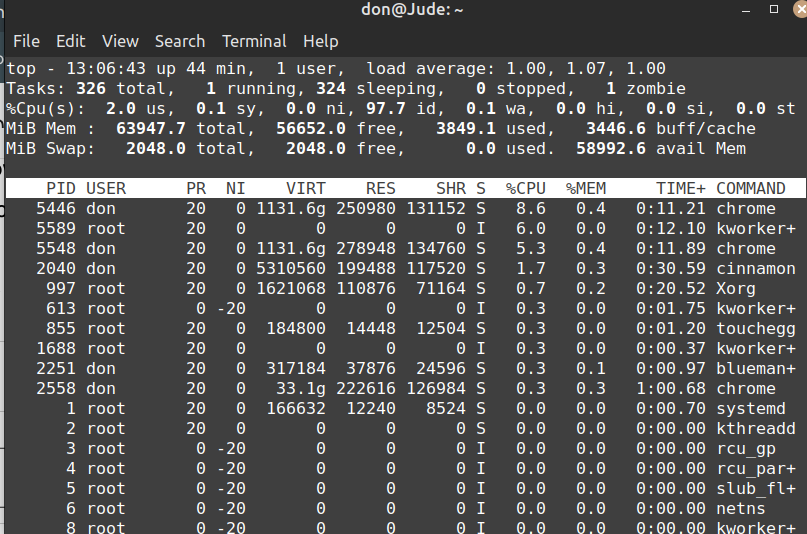
Running processes are displayed below the table heading on the top screen, and system statistics are shown above it.

Press the Z key to change the color of the output. I find this makes the output a little easier on the eyes. Press the 1 key to see a graphical representation of each CPU core on the system. Press 1 repeatedly to assess core statistics for your CPU cores.

You can display memory usage graphically by invoking the top command and then pressing the m key.

Useful top options

If you’re looking only for the processes started by a specific user, you can get that information with the -u option:

$ top -u 'username'

To get a list of idle processes on your system, use the -i option:

$ top -i

You can set the update interval to an arbitrary value in seconds. The default value is three seconds. Change it to five like this:

$ top -d 5

You can also run top on a timer. For instance, the following command sets the number of iterations to two and then exits:

$ top -n 2

Locate a process with top

Press Shift+L to locate a process by name. This creates a prompt just above the bold table header line. Type in the name of the process you’re looking for and then press Enter or Return to see the instances of that process highlighted in the newly sorted process list.

Stopping a process with top

You can stop or “kill” a running process with, too. First, find the process you want to stop using either Shift+L or pgrep. Next, press K and enter the process ID you want to stop. The default value is whatever is at the top of the list, so be sure to enter the PID you want to stop before pressing Enter, or you may stop a process you didn’t intend to.
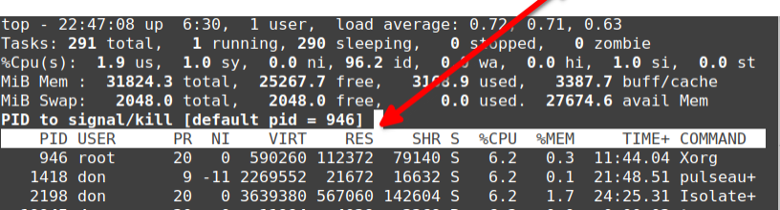
top results
Image by: (Don Watkins, CC BY-SA 4.0)

Top top

There are many iterations of the top command, including htop, atop, btop, and ttop. There are specialized top commands, too, like powertop for power usage and ntop for networks. What’s your favorite top?

Tags: top

Post navigation

Previous: Exploring the history of technology
Next: Retro-Fun with CRT

Related Stories

programming_code_keyboard_orange_hands
  • Linux
  • Programming

Converting tabs to spaces

Jim Hall May 20, 2026
gears-01
  • Command Line
  • FreeDOS

Customize your FreeDOS with FDCONFIG.SYS

Jim Hall May 18, 2026
Photo by Scott Rodgerson on Unsplash
  • Cloud
  • Digital sovereignty
  • Linux
  • Open Source
  • Security

Digital sovereignty

Seth Kenlon May 15, 2026

Random Quote

Job control cards that positively cannot be arranged in improper order will be.

— Troutman’s Programming Postulates

Why I’ve Never Used Windows

On February 12 I gave a presentation at the Triangle Linux Users Group (TriLUG) about why I use Linux and why I’ve never used Windows.

Here’s the link to the video: https://www.youtube.com/live/uCK_haOXPFM 

Why there’s no such thing as AI

Last October at All Things Open (ATO) I was interviewed by Jason Hibbits of We Love Open Source. It’s posted in the article “Why today’s AI isn’t intelligent (yet)“.

Technically We Write — Our Partner Site

Our partner site, Technically We Write, has published a number of articles from several contributors to Both.org. Check them out.

Technically We Write is a community of technical writers, technical editors, copyeditors, web content writers, and all other roles in technical communication.

Subscribe to Both.org

To comment on articles, you must have an account.

Send your desired user ID, first and last name, and an email address for login (this must be the same email address used to register) to subscribe@both.org with “Subscribe” as the subject line.

You’ll receive a confirmation of your subscription with your initial password as soon as we are able to process it.

Administration

  • Log in
  • Entries feed
  • Comments feed
  • WordPress.org

License and AI Statements

Both.org aims to publish everything under a Creative Commons Attribution ShareAlike license. Some items may be published under a different license. You are responsible to verify permissions before reusing content from this website.

The opinions expressed are those of the individual authors, not Both.org.

You may not use this content to train AI.


Advertising Statement

Both.org does not sell advertising on this website.


Advertising may keep most websites running—but at Both.org, we’re committed to keeping our corner of the web ad-free. Both.org does not sell advertising on the website. Nor do we offer sponsored articles at this time. We’ll update this page if our position on sponsorships changes.

We want to be open about how the website is funded. Both.org is supported entirely by David Both and a few other dedicated individuals.


Copyright © All rights reserved. | MoreNews by AF themes.