 David Both
Last Updated on May 30, 2026 by David Both
Life is busy these days.
I just signed contracts to produce the 3rd Edition of my books, “Using and Administering Linux.” I have a couple other projects in progress, including a few articles for Both.org, and testing some new installation procedures for Fedora, among other things. Not to mention all the stuff in my personal life.
Just When Things Were Going so Well
I’d already revised several chapters of Volume 1 and was getting ready to start the next one. But there were some Fedora updates in the queue this morning — I check frequently — including a new kernel, so I decided to install them. I did, and everything seemed good.
Until I tried to launch the VM on which I’m redoing all the experiments. It just refused to launch and gave some cryptic errors indicating it couldn’t compile or load the kernel modules it needed to launch the VM. Nothing I did, including removing and reinstalling VirtualBox, would change the symptoms let alone fix the problem.
I’d installed VirtualBox with an RPM I downloaded from the Oracle VirtualBox website. In the past, I’d found that when confronted with problems of this nature, removing the Oracle version and installing the version repackaged by Fedora maintainers would resolve the problem. But not in this case.
How I Fixed it
Well not really. However I did circumvent the problem quite easily. All it requires is a reboot. But not one like you do with Windows where you don’t know what the real problem is and the reboot doesn’t really fix it, just masks the real cause but gets you going until the next time the same thing happens.
Very early in the Linux boot sequence, the GRUB menu is displayed, and this is the key to my temporary resolution to this problem. This menu is normally displayed for only 3 seconds, so if you need to do this, be ready.
When the GRUB menu appeared I used the Down Arrow key to select the most recent older kernel. The VM I used for the image below has only one kernel older than the most recent one. My primary workstation has four older kernels. That most recent one on my workstation, 6.18.16-200.fc43.x86_64, was the one under which VirtualBox worked fine. I selected that one and pressed the Enter key to continue the boot sequence.
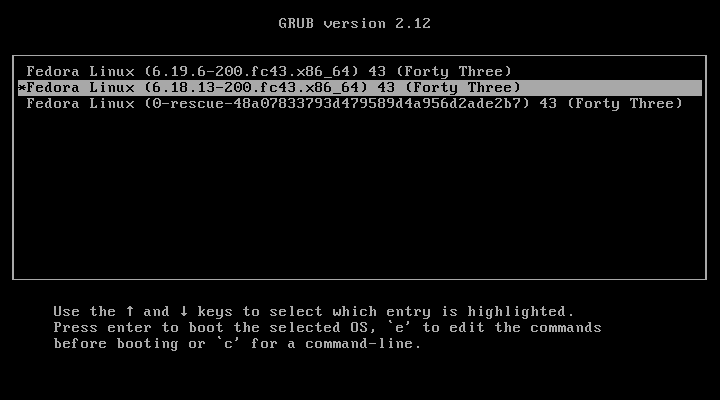
After booting to that older kernel, VirtualBox works fine. Now I can wait until the root cause of this problem is fixed, whether it lies with VirtualBox, the Fedora Kernel, or the development tools or libraries, while still making progress on my books. Then I can go back to booting from the most recent kernel.
The best part is I didn’t need to fuss with rolling back the latest updates. All those updates are still there and the system is able to use them regardless of which kernel is currently running.

 Don Watkins

 Jim Hall