My 5 favorite Vim color schemes for coding
 Jim Hall
I do a lot of my work in a terminal window. When I need to edit a shell script or write a short program, I just do it there in my terminal. My favorite visual editor for these kinds of short programs is Vim, the improved version of the classic Unix vi editor. I find I can quickly make the edits that I need using Vim, then get right back to work.
But just because Vim is a terminal-mode editor doesn’t mean you’re stuck with boring black and white text. Vim supports a wide assortment of color schemes, with highlighting support for programming and scripting languages. Highlighting helps me to spot syntax errors in my code before they become bugs.
I wanted to explore the color schemes in Vim, so I created a montage showing all of the color schemes included in Vim 9.2, the current version of Vim. Each shows the same C program (a simple “guess the number” program) that demonstrates highlighting for comments, include statements, main program, while loop, and if statements.
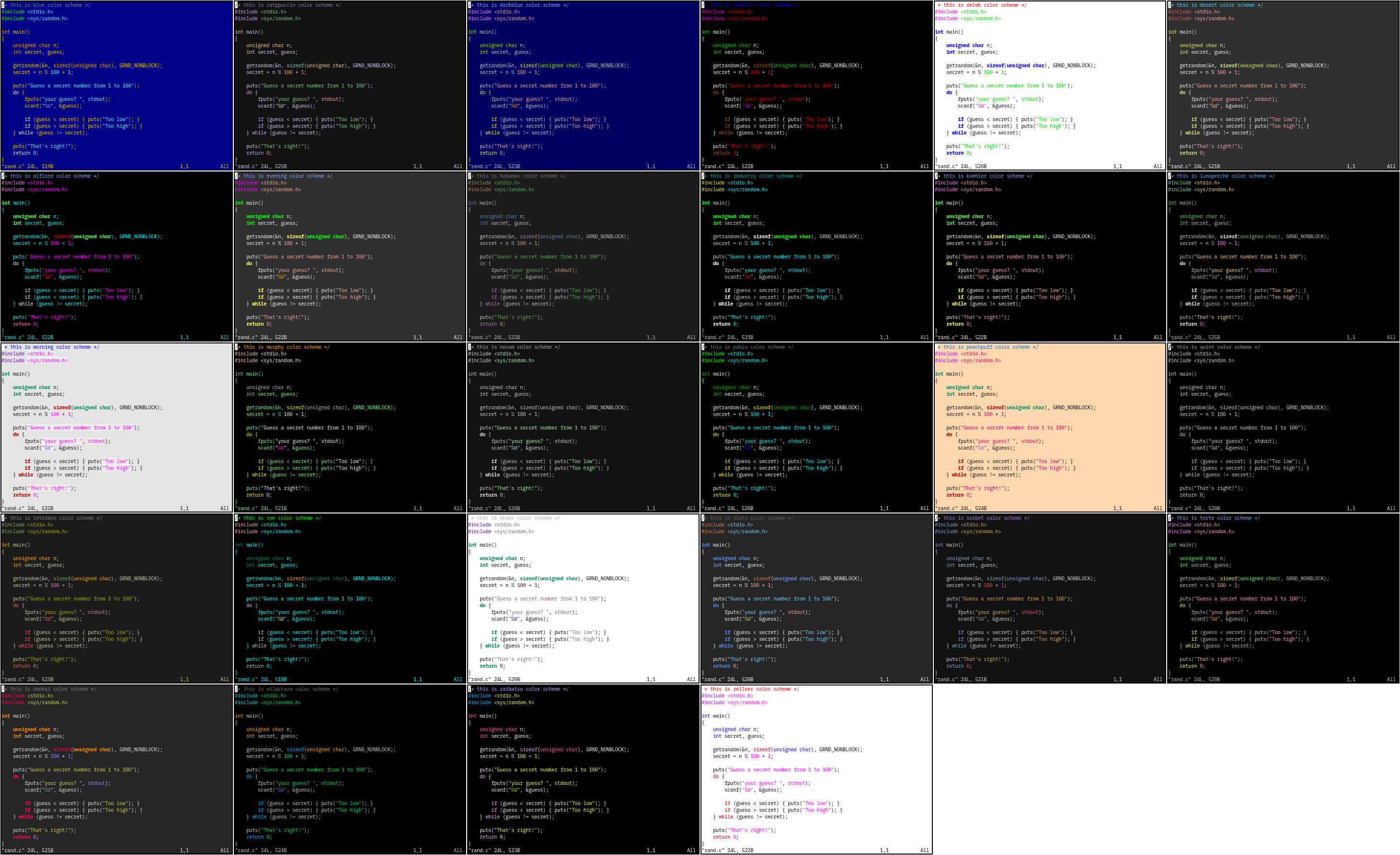
Many of these themes are quite nice. When working in a terminal window, I prefer to keep some variation of my terminal colors: light text on a dark background. Highlighting shouldn’t be too “glaring” but it should be noticeable. These 5 terminal-mode color schemes look best to me:
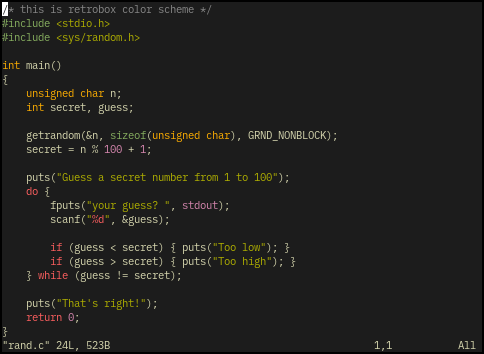
Retrobox
I have been using this theme for some time. It’s easy on the eyes, and provides just enough highlighting to see the important parts of my program. I especially like how the comment line uses a “muted” color so it’s still visible but clearly not a code line.
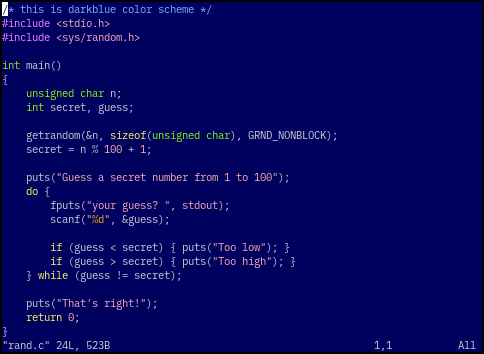
Darkblue
There’s something about this color scheme that reminds me of working on old DOS systems. Similar to the Blue color scheme, this theme uses a blue background with white text, but the background color is a much darker that I find easier to read. I also like the light blue comment color, and the not-too-bright code highlighting.
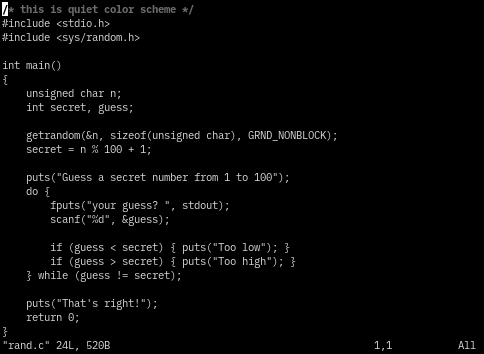
Quiet
If you’re looking for a color scheme that provides minimal highlighting, then Quiet is the theme for you. It uses the terminal’s colors, but provides subtle highlighting for comments and a few other things. Fans of the classic Unix vi will want to try this theme.
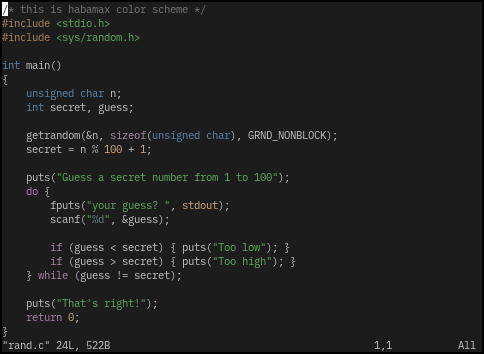
Habamax
I like the Habamax color scheme because the highlighting isn’t too strong in my terminal, but it’s just enough to help me spot coding errors along the way. Note that highlighting for numbers, code, keywords, and strings are all distinct. This is a good all-around theme if you prefer a muted palette.
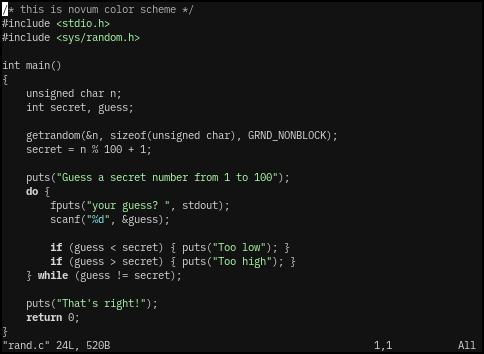
Novum
The Novum color scheme is just a good all-around theme. Keywords are highlighted in a bright white color, and strings are a light green. It’s almost like the Quiet theme, but with a few muted colors. Maybe not the best color scheme if you’re doing a lot of coding, especially without extra highlighting for keywords or numbers, but it’s great for making quick edits.
To apply a color scheme to Vim, edit your vimrc file, such as ~/.vimrc or ~/.vim/vimrc and add a colorscheme line that names the theme you like best. For example, to make Habamax the default color theme whenever you start Vim, add this line to your vimrc file:
colorscheme habamax