Don Watkins
Knowing how much of your disk is being used by your files is an important consideration, no matter how much storage you have. My laptop has a relatively small 250GB NVME drive. That’s usually okay, but I began to explore gaming on Linux a couple of years ago. Installing Steam and a few games can make storage management more critical.
The du command
The easiest way to examine what’s left for storage on your disk drive is the du command. This command line utility estimates file space usage. Like all Linux tools, du is very powerful, but knowing how to use it for your particular needs is helpful. I always consult the man page for any utility. This specific tool has several switches to give you the best possible snapshot of file storage and how much space they consume on your system.
There are many options for the du command. Here are some of the common ones:
-a– write counts for all files and not just directories--apparent-size– prints apparent sizes rather than disk usage-h– human-readable format-b– bytes-c-grand total-k– block size-m– size in megabytes
Be sure to check the du man page for a complete listing.
Display all files
The first option you could choose is du -a. It provides a readout of all files on your system and the directories they are stored in. This command lets me know I’ve got 11555168 bytes stored in my home directory. Using du -a provides a quick recursive look at my storage system. What if I want a more meaningful number, and I want to drill down into the directories to see where the big files are on my system?
I think there are some big files in my Downloads directory, so I enter du -a /home/don/Downloads to get a good look at that Downloads directory.
$ du -a ~/Downloads
4923    ./UNIX_Driver_5-0/UNIX Driver 50
4923    ./UNIX_Driver_5-0
20     ./epel-release-latest-9.noarch.rpm
12    ./rpmfusion-free-release-9.noarch.rpm
2256    ./PZO9297 000 Cover.pdf
8    ./pc.md
2644    ./geckodriver-v0.31.0-linux64.tar.gz
466468
The numbers on the far left are the file sizes in bytes. I want something more helpful to me so I add the switch for the human-readable format to my du -h /home/don/Downloads command. The result is 4.8 G(igabytes) which is a more useful number format for me.
$ du -ah ~/Downloads
4.9M    ./UNIX_Driver_5-0/UNIX Driver 50
4.9M    ./UNIX_Driver_5-0
20K    ./epel-release-latest-9.noarch.rpm
12K    ./rpmfusion-free-release-9.noarch.rpm
2.2M    ./PZO9297 000 Cover.pdf
8.0K    ./pc.md
2.6M    ./geckodriver-v0.31.0-linux64.tar.gz
456M    .
As with most Linux commands, you can combine options. To look at your Downloads directory in a human-readable format, use the du -ah ~/Downloads command.
Grand total
The -c option provides a grand total for disk usage at the last line. I can use du -ch /home/don to display every file and directory in my home directory. There is a lot of information, and I really just want what is at the end, so I will pipe the disk usage command to tail. The command is du -ch /home/don | tail.
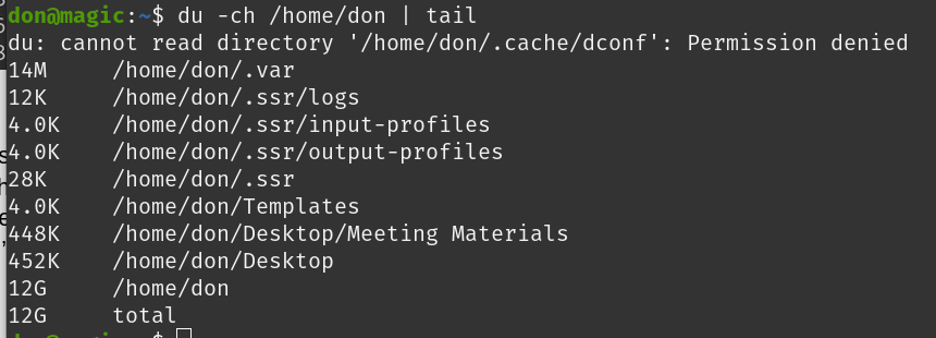
Image by: (Don Watkins, CC BY-SA 4.0)
The ncdu command
Another option for Linux users interested in what is stored on their drive is the ncdu command. The command stands for NCurses Disk Usage. Depending on your Linux distribution, you may need to download and install it.
On Linux Mint, Elementary, Pop_OS!, and other Debian-based distributions:
$ sudo apt install ncduOn Fedora, Mageia, and CentOS:
$ sudo dnf install ncduOn Arch, Manjaro, and similar:
$ sudo pacman -S ncduOnce installed, you can use ncdu to analyze your filesystem. Here is a sample output after issuing ncdu inside my home directory. The man page for ncdu states that “ncdu (NCurses Disk Usage) is a curses-based version of the well-known du, and provides a fast way to see what directories are using your disk space.”
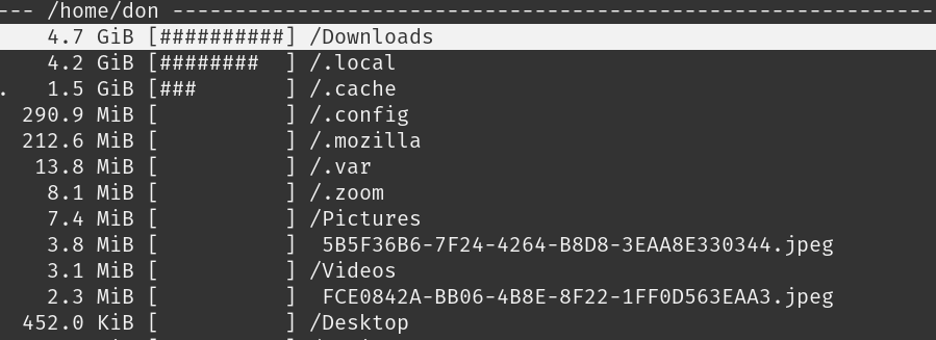
Image by: (Don Watkins, CC BY-SA 4.0)
I can use the arrow keys to navigate up and down and press the Enter key to enter a directory. An interesting note is that du reported total disk usage in my home directory as 12GB, and ncdu reports that I have total disk usage of 11GB. You can find more information in the ncdu man page.
You can explore a particular directory by pointing ncdu to that directory. For example, ncdu /home/don/Downloads.
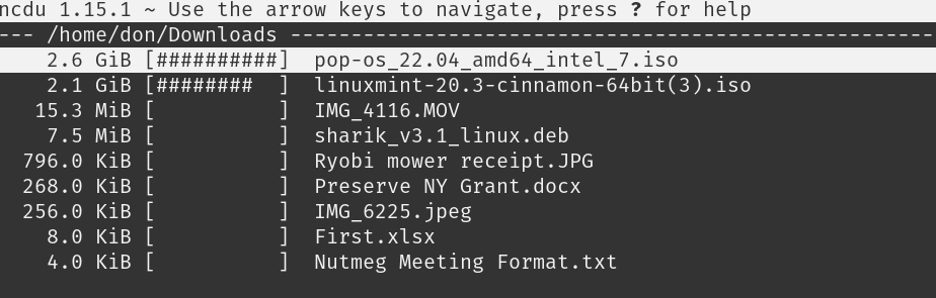
Image by: (Don Watkins, CC BY-SA 4.0)
Press the ? key to display the Help menu
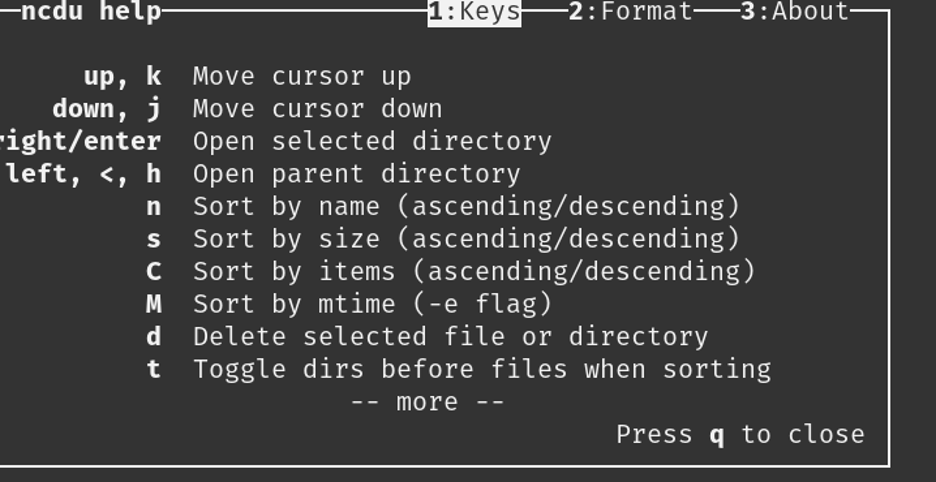
Image by: (Don Watkins, CC BY-SA 4.0)
Wrap up
The du and ncdu commands provide two different views of the same information, making it easy to keep track of what’s stored on your computer.
If you’re not comfortable in the terminal or just looking for yet another view of this kind of information, check out the GNOME Disk Usage Analyzer. You can easily install and use it if it’s not already on your system. Check your distribution for baobab and install it if you’d like to experiment.

 Jim Hall