 Upgrades to Fedora 45 for the Both.org servers will take place on Saturday, November 7, starting at approximately 0900 EST. We expect Both.org to be off-line for about 3 hours during the upgrade.
What’s old is new again: XTerm on modern Linux
 Jim Hall
I got my start with Unix on a Sun Microsystems 3/50 workstation, running the TWM window manager for the X Window system. Back then, X Window system was just a way to display graphics on a Unix system, and a window manager did the hard work of tracking windows and letting switch which was the “active” window.
TWM was pretty basic, but it did the job, and I was glad to have it. I was pleased to find TWM on my first Linux system in 1993.
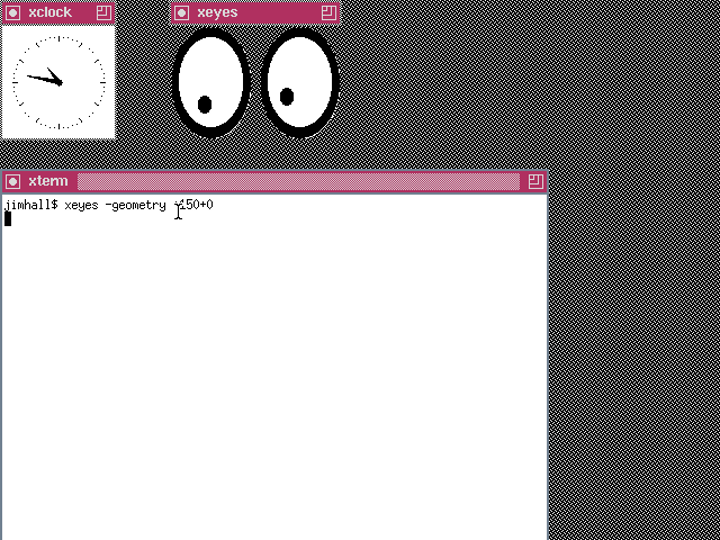
That window in the lower-left is XTerm, the X Window terminal emulator. And it may be hard to believe, but XTerm is still around in 2026.
Modern XTerm
The current XTerm is maintained by Thomas E. Dickey, who has worked on XTerm since 1995. The xterm(1) man page mentions “June 2022” so it was updated at least that recently. Although in practice, XTerm is an old program with a long history of development, so there’s probably not much need to update it. XTerm in 2026 looks and acts pretty much like XTerm in the 1990s.
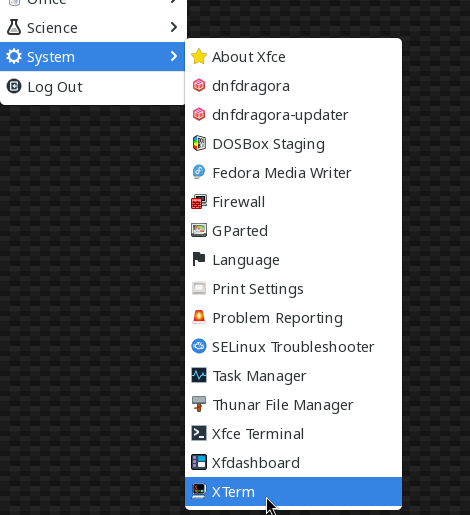
I rediscovered XTerm because my desktop is Xfce, and there’s a menu item to launch XTerm under the “System” menu:
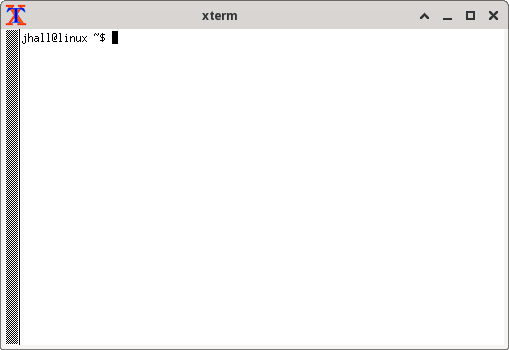
If you launch XTerm using the menu, you’ll see XTerm looking pretty much like it did in the 1990s. The gray bar on the left is actually the scroll bar:
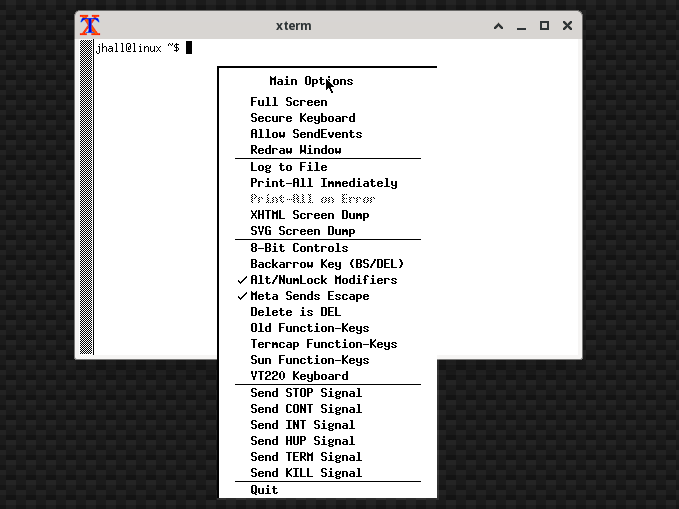
XTerm dates back to the earliest versions of the X Window system, so it doesn’t have menus like you’d find in modern desktops. Instead, you activate menus by holding the Ctrl key on your keyboard and clicking in XTerm with your mouse. Each presents different menus:
Ctrl+left has the “main options” that allow you to configure XTerm in different ways, such as logging, generating screen dumps, and configuring the function keys.
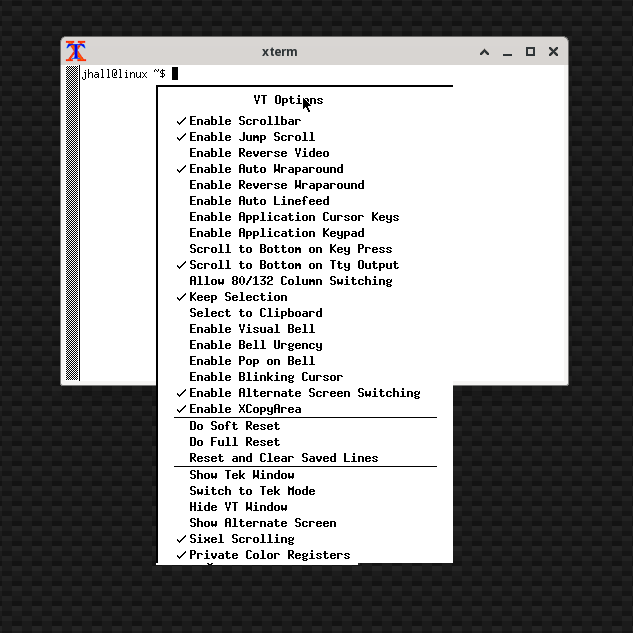
Ctrl+middle controls the virtual terminal options, including visual bell (“flash” the screen instead of making a beep).
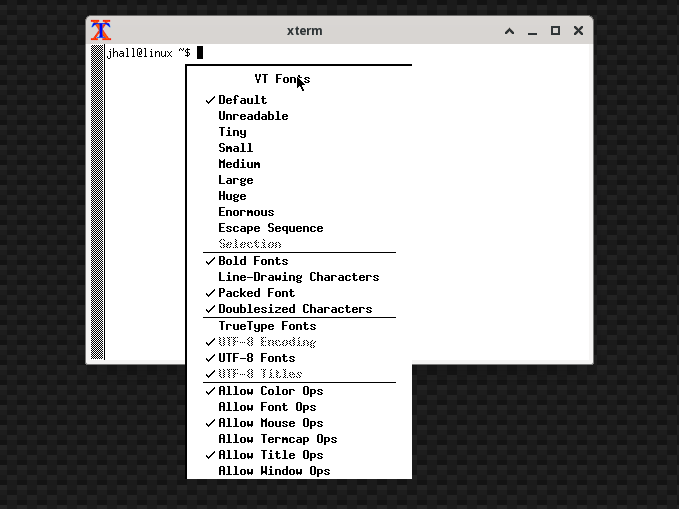
Ctrl+right sets the fonts, such as the font size (from “unreadable” to “enormous”) and supporting TrueType fonts.
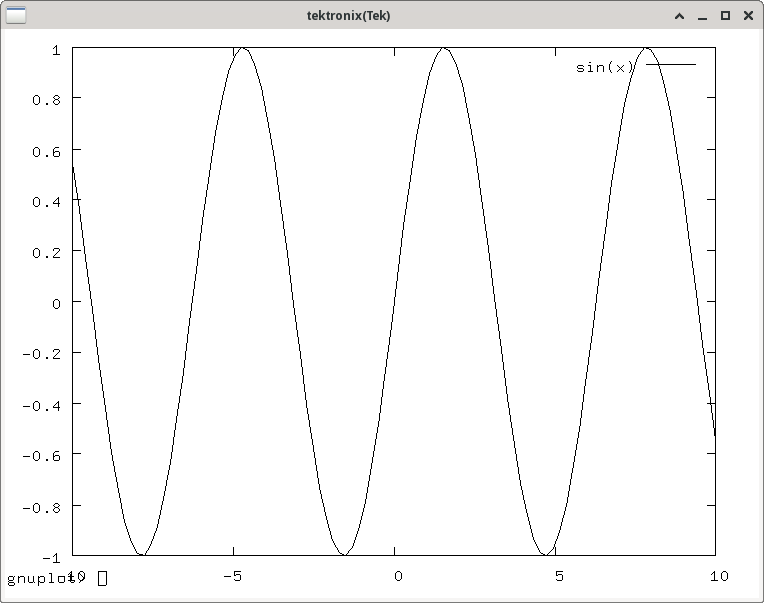
The “Tek” mode in the Ctrl+middle menu was a neat feature. “Classic” XTerm from the early 1990s emulated the VT102 terminal, which was a variant of the venerable DEC VT100. From the mid 1990s until 2012, XTerm preferred the terminal description that matched the VT220 terminal. Since then, XTerm prefers the VT420. The “VT” terminals were all text-based terminals, but another popular terminal was the Tektronix 40xx series, such as the 4010 and 4014. These terminals were made by Tektronix, also known for their oscilliscopes, so it’s probably not surprising that the 40xx terminals could provide graphics that were similar in quality to an oscilliscope: monochrome and line-based.
But these simple graphics made it so easy to do certain things, such as preview lab data. I used to do that all the time when I was an undergraduate physics student; gnuplot supported various “terminal” output types, including Tektronix. This meant you could display charts right at the terminal. And with XTerm’s “Tek” emulation, you could do charts inside XTerm:
Making XTerm more readable
I wanted to explore XTerm again, but I had to admit that the fonts were just ugly to my modern eyes. I’m too used to TrueType fonts.
Fortunately, XTerm supports TrueType fonts using the -fa command line option, and font size using the -fs option. For example, you can start XTerm with Liberation Mono 24-point with this command:
$ xterm -fa 'Liberation Mono' -fs 24You can also set the text colors, using -bg to set the background color and -fg to set the text color (“foreground” color). For example, you could start XTerm with a light blue background and dark blue text using this command line:
$ xterm -bg ghostwhite -fg midnightblueBut every time I launched XTerm using the Xfce menu, it used the defaults. You’ll notice from the above screenshots that there’s no way to “save” your preferences; XTerm always starts up with the defaults. I don’t mind black text, but I wanted an off-white background color so it wasn’t so glaring. And I preferred to use my favorite monospace font, IBM Plex Mono, which has a style similar to the original IBM Selectric typewriter.
Then I remembered that the X Window system from the 1990s provided an “X Resources” database, which you could set via a plain text file named .Xresources in your home directory. This file uses key:value pairs, which are case sensitive, separated with a colon. You can find the X Resources for XTerm in the xterm(1) man page, but the values I needed were faceName, faceSize and background to set the font, font size, and background color. I also added scrollBar to disable the scroll bar. I created this ~/.Xresources file:
XTerm*faceName: IBM Plex Mono
XTerm*faceSize: 14
XTerm*background: floralwhite
XTerm*scrollBar: false
But even after creating this file, XTerm will still use its defaults. That’s because the X Resources are only initialized when X starts up. To merge the new .Xresources values into the running X Resources database, you need to run the xrdb command:
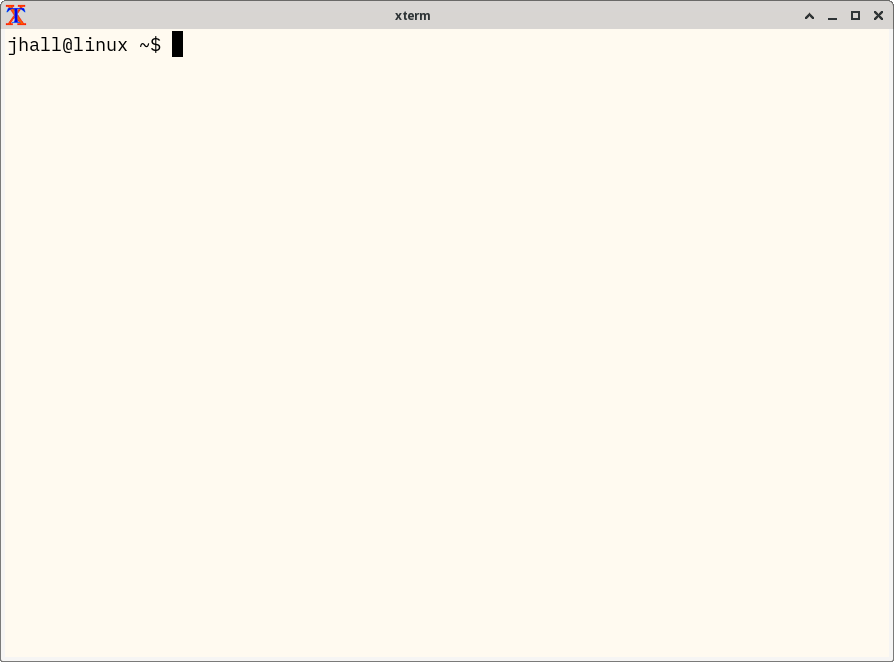
$ xrdb -merge ~/.XresourcesAnd with that, whenever I launch XTerm using the Xfce menu, I get the right font, at the correct size, with an off-white background color, and no scroll bar:

 David Both
 Don Watkins