Supercharge LibreOffice with Command Line Automation
 Don Watkins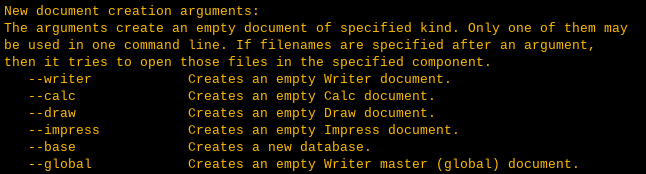
LibreOffice has all the productivity features you’d want from an office software suite, making it a popular open source alternative to Microsoft Office or Google Suite. One of LibreOffice’s powers is the ability to operate from the command line. For example, Seth Kenlon recently explained how he uses a global command-line option to convert multiple files from DOCX to EPUB with LibreOffice. His article inspired me to share some other LibreOffice command-line tips and tricks.
Before we look at some hidden features of LibreOffice commands, you need to understand how to use options with applications. Not all applications accept options (aside from the basics like the --help option, which works in most Linux applications).
$ libreoffice --helpThis returns descriptions of other options LibreOffice accepts. Some applications don’t have many options, but LibreOffice has a few screens worth, so there’s plenty to play with.
Here are five useful things you can do with LibreOffice at the terminal to make the software even more useful.
1. Customize your launch options
You can modify how you launch LibreOffice. For instance, if you want to open just LibreOffice’s word processor component:
$ libreoffice --writer #starts the word processorYou can open its other components similarly:
$ libreoffice --calc  #starts the Calc document
$ libreoffice --draw  #starts an empty Draw document
$ libreoffice --web  #starts and empty HTML document
You also can access specific help files from the command line:
$ libreoffice --helpwriter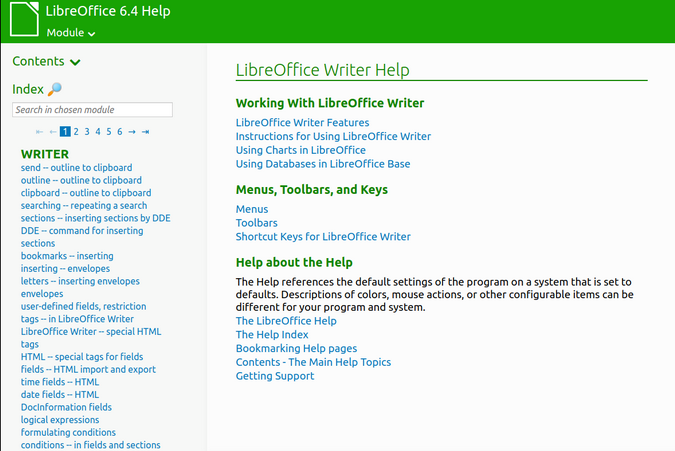
Or if you need help with the spreadsheet application:
$ libreoffice --helpcalcYou can start LibreOffice without the splash screen:
$ libreoffice --writer --nologoYou can even have it launch minimized in the background while you finish working in your current window:
$ libreoffice --writer --minimized2. Open a file in read-only mode
You can open files in read-only mode using --view to prevent accidentally making and saving changes to an important file:
$ libreoffice --view example.odt3. Open a document as a template
Have you ever created a document to use as a letterhead or invoice form? LibreOffice has a rich built-in template system, but you can make any document a template with the -n option:
$ libreoffice --writer -n example.odtYour document will open in LibreOffice and you can make changes to it, but you won’t overwrite the original file when you save it.
4. Convert documents
When you need to do a small task like converting a file to a new format, it can take as long for the application to launch as it takes to do the task. The solution is the --headless option, which executes LibreOffice processes without launching the graphical user interface.
For example, converting a document to EPUB is a pretty simple task in LibreOffice—but it’s even easier with the libreoffice command:
$ libreoffice --headless --convert-to epub example.odtUsing wildcards means you can convert dozens of documents at once:
$ libreoffice --headless --convert-to epub *.odtYou can convert files to several formats, including PDF, HTML, DOC, DOCX, EPUB, plain text, and many more.
5. Print from the terminal
You can print LibreOffice documents from the command line without opening the application:
$ libreoffice --headless -p example.odtThis option prints to the default printer without opening LibreOffice; it just sends the document to your printer.
To print all the files in a directory:
$ libreoffice -p *.odt(More than once, I’ve issued this command and then run out of paper, so make sure you have enough paper loaded in your printer before you start.)
You can also print files to PDF. There’s usually no difference between this and using the --convert-to-pdf option but it’s easy to remember:
$ libreoffice --print-to-file example.odt --headlessBonus: Flatpak and command options
If you installed LibreOffice as a Flatpak, all of these command options work, but you have to pass them through Flatpak. Here’s an example:
$ flatpak run org.libreoffice.LibreOffice --writerIt’s a lot more verbose than a local install, so you might be inspired to write a Bash alias to make it easier to interact with LibreOffice directly.
Surprising terminal options
Find out how you can extend the power of LibreOffice from the command line by consulting the man pages:
$ man libreofficeWere you aware that LibreOffice had such a rich set of command-line options? Have you discovered other options that nobody else seems to know about? Share them — send an email to Open@Botrh.org and we’ll collect them into a follow-up article.

 Jim Hall