Skip to content

Both.org

News, Opinion, Tutorials, and Community for Linux Users and SysAdmins

Primary Menu
  • About Us
  • Computers 101
    • Hardware 101
    • Operating Systems 101
  • End of 10 Events
    • Wake Forest, NC, — 2025-09-20
  • Linux
    • Why I use Linux
    • The real reason we use Linux
  • My Linux Books
    • systemd for Linux SysAdmins
    • Using and Administering Linux – Zero to SysAdmin: 2nd Edition
    • The Linux Philosophy for SysAdmins
    • Linux for Small Business Owners
    • Errata
      • Errata for The Linux Philosophy for SysAdmins
      • Errata for Using and Administering Linux — 1st Edition
      • Errata for Using and Administering Linux — 2nd Edition
  • Open Source Resources
    • What is Open Source?
    • What is Linux?
    • What is Open Source Software?
    • The Open Source Way
  • Write for us
    • Submission and Style guide
    • Advertising statement
  • Downloads
  • Home
  • Two open source desktop recording tools
  • Linux
  • Multimedia
  • Open Source

Two open source desktop recording tools

Don Watkins July 3, 2024 4 minutes read
fiber-81623-e1692192333302-Pixabay-Cropped

A picture might be worth a thousand words, but a video demonstration can save much talking. I’m a visual learner, so seeing how to do something has been very helpful in my education. I’ve found that students benefit from seeing exactly how an application is configured or how a code snippet is written. Desktop screen recorders are great tools for creating instructional videos. I’ll examine two free, open-source desktop screen recorders in this article: SimpleScreenRecorder and Kazam.

SimpleScreenRecorder

SimpleScreenRecorder lets you easily record desktop action. It has an intuitive interface and can record in MP4, OGG, Matroska, or WebM format. SimpleScreenRecorder is released under the Gnu Public License and runs on Linux.

After installing and launching the program, you can easily configure it to capture the whole desktop, a specific window, or a select area. The latter is my favorite because it focuses the learner’s attention on exactly where I want them to look. You can record the cursor or not, adjust the frame rate, scale the video, and adjust the audio backend, which includes three options: ALSA, JACK, and PulseAudio. The video frame rate defaults to 30fps.

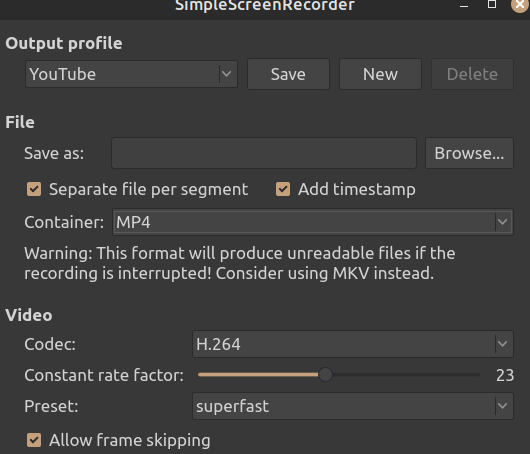
Because SimpleScreenRecorder uses libav/ffmpeg libraries for encoding, it supports various file formats and video codecs. Different profiles can be used (faster profiles mean bigger file sizes), including YouTube, LiveStream (1000kbps), LiveStream (2000kbps), LiveStream (3000 kbps), and high-quality intermediate.
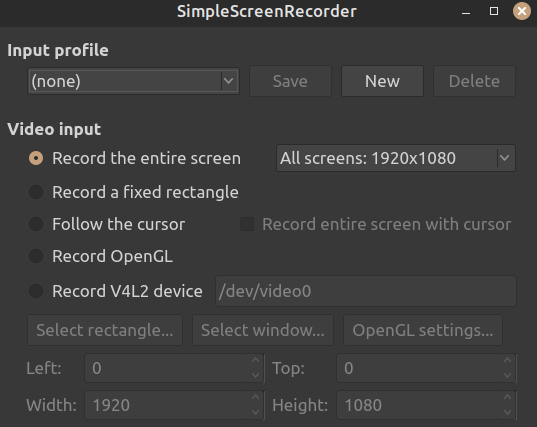
Top of configuration input profile.Choices to record the entire screen or other options.
This is an option for a YouTube profile, one of many you can choose.

After you’ve configured your system, recording is easy. You can click the Start recording button or use a selection hotkey.
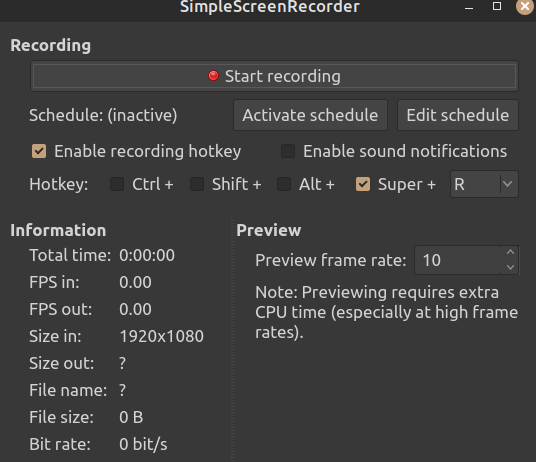
Use this section at the bottom of the ‘preferences’ to choose a ‘hot key’ to initiate recording or click on the ‘start recording.’ button.

Sound notification can also be enabled, a nice feature that lets you know when the recording begins and ends. Once the recording is completed, the file can edited or uploaded to YouTube, Vimeo, or an educational learning management system.

SimpleScreenRecorder’s website has great documentation, including tips for configuration, recording, and uploading, as well as installation instructions for various Linux distributions.

Kazam

The Kazam desktop screen recorder is also released under the Gnu Public License, and, like SimpleScreenRecorder, it is easy to use and offers an intuitive interface. After you install and launch the program, you can configure it to capture the whole desktop, a specific window, or a select area. Recording a select screen area can come in handy because it focuses the learner’s attention on where you want them to look. You can capture the mouse pointer movement, too. I like that Kazam can also delay the capture, which can be useful when recording tutorials.

Configuring preferences is easy under the File | Preferences menu. Audio capture sources can be selected to include speakers and a microphone. The countdown splash can also be turned off.
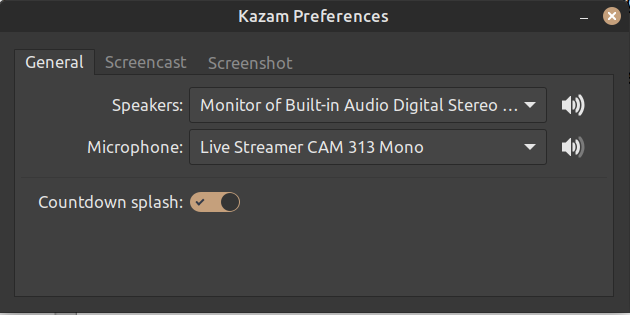
Kazam preferences are where you can choose input and output.

The second tab of preferences is for selecting video preferences. The frame rate defaults to 15fps. The default recording is set to H264(MP4), but other formats, such as VP8(WEBM), HUFFYUV, LosslessJPEG, and RAW AVI, are available. Automatic file saving is enabled by default, with the self-selected directory where videos are saved and a default file-name prefix that is user-configurable.
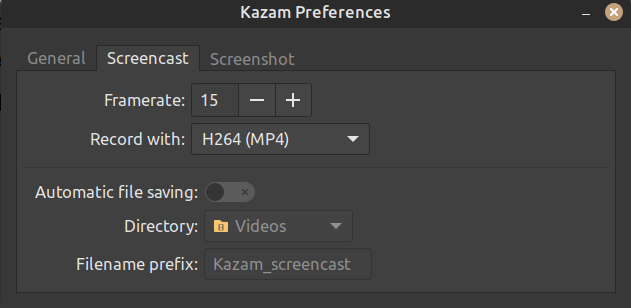
This is the second panel of the preferences where you can select framerate and encoding and where the file will be saved.

Configuring the screenshot is easy. The shutter sound is on by default, and the shutter type can be self-selected, including the default Nikon D80 or Canon 7D. File saving is automatic unless otherwise selected.
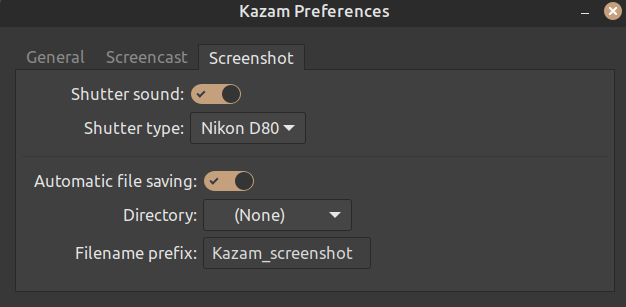
The final panel is where the shutter type and sound effects can be chosen for your screenshot.

Screencasts can be easily saved to a directory of your choice, and the file is ready to upload to your favorite sharing site or learning management system.


Here’s to flipping your classroom and instruction using a Linux computer and either of these excellent desktop screen recorders!

Tags: Desktop recording tools Kazam SimpleScreenRecorder

Post navigation

Previous: The Linux Filesystem Hierarchical Standard
Next: Holiday Fireworks

Related Stories

Photo by Scott Rodgerson on Unsplash
  • Cloud
  • Digital sovereignty
  • Linux
  • Open Source
  • Security

Digital sovereignty

Seth Kenlon May 15, 2026
Puzzle pieces coming together to form a computer screen
  • Fortran 77
  • History
  • Linux

A look back: f2c

Jim Hall May 13, 2026
Ubuntu-Resolute-Raccoon
  • Getting Started
  • Linux
  • Ubuntu

Getting started with Linux: Ubuntu 26.04

Don Watkins May 12, 2026

Random Quote

Never interrupt someone doing what you said couldn’t be done.

— Amelia Earhart

Why I’ve Never Used Windows

On February 12 I gave a presentation at the Triangle Linux Users Group (TriLUG) about why I use Linux and why I’ve never used Windows.

Here’s the link to the video: https://www.youtube.com/live/uCK_haOXPFM 

Why there’s no such thing as AI

Last October at All Things Open (ATO) I was interviewed by Jason Hibbits of We Love Open Source. It’s posted in the article “Why today’s AI isn’t intelligent (yet)“.

Technically We Write — Our Partner Site

Our partner site, Technically We Write, has published a number of articles from several contributors to Both.org. Check them out.

Technically We Write is a community of technical writers, technical editors, copyeditors, web content writers, and all other roles in technical communication.

Subscribe to Both.org

To comment on articles, you must have an account.

Send your desired user ID, first and last name, and an email address for login (this must be the same email address used to register) to subscribe@both.org with “Subscribe” as the subject line.

You’ll receive a confirmation of your subscription with your initial password as soon as we are able to process it.

Administration

  • Log in
  • Entries feed
  • Comments feed
  • WordPress.org

License and AI Statements

Both.org aims to publish everything under a Creative Commons Attribution ShareAlike license. Some items may be published under a different license. You are responsible to verify permissions before reusing content from this website.

The opinions expressed are those of the individual authors, not Both.org.

You may not use this content to train AI.


Advertising Statement

Both.org does not sell advertising on this website.


Advertising may keep most websites running—but at Both.org, we’re committed to keeping our corner of the web ad-free. Both.org does not sell advertising on the website. Nor do we offer sponsored articles at this time. We’ll update this page if our position on sponsorships changes.

We want to be open about how the website is funded. Both.org is supported entirely by David Both and a few other dedicated individuals.


Copyright © All rights reserved. | MoreNews by AF themes.