 David Both
Last Updated on January 20, 2026 by David Both
In the 3rd episode of this series, I used the btrfs-convert command to convert the EXT4 filesystem on an LVM base to BtrFS on LVM. My research hasn’t revealed any way to convert the LVM volume group and volume to a Linux type 83 partition1 while also migrating the EXT4 filesystem to BtrFS, so this has been LVM/BtrFS.
That conversion and the testing I’ve done for the last two weeks have all gone well so I’ve started the next stage of my conversion and testing.
Testing BtrFS on LVM
But let’s take a quick look at my testing before moving on.
I’ve been using the stress-ng tool for that and it’s given me good information about my test system with only the filesystem in question under test as well as additional testing with some or all of the other system components under stress, such as memory, CPU, I/O, DIsk, and more.
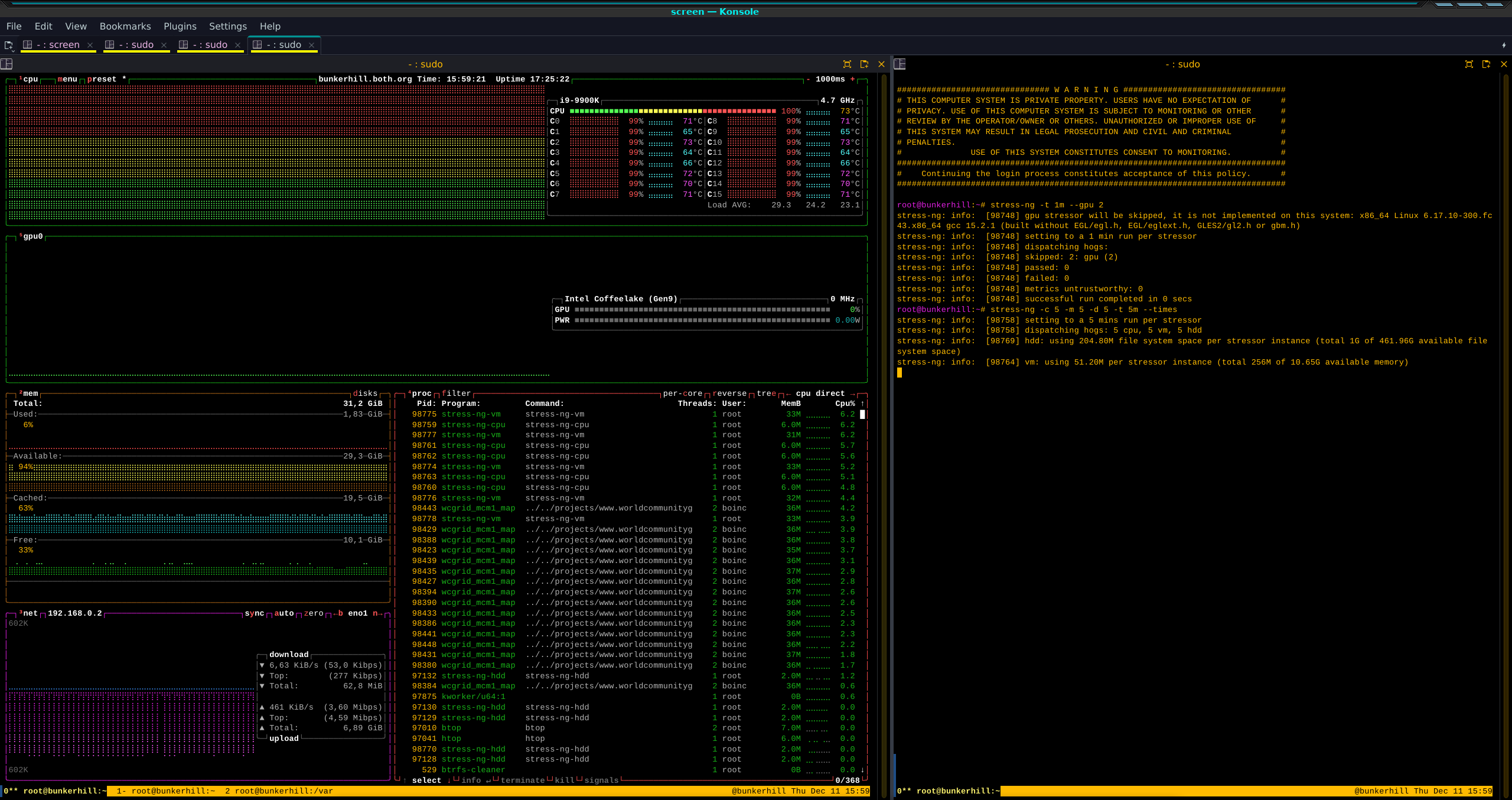
I usually start btop and htop on the left terminal of a vertically-split screen session in one tab of the highly flexible and configurable Konsole terminal emulator. In the right terminal, I start the stress-ng utility with whatever set of stressors I want for the current test. Figure 1 shows this setup in one of my early tests much more clearly than words can.
That testing went very well, and based on that, I decided to proceed to the next step.
Converting to BtrFS on a Linux partition
Because there’s no option for an in-place conversion from LVM/BtrFS to raw Linux partition/BtrFS, it was necessary to wipe out the entire disk I’m using for my family pictures and start from scratch. I make multiple backups daily so I don’t need to do that before wiping out the entire drive. However, I did verify that the backups were good.
I unmounted the drive. Well, I tried to, but the umount command indicated that the drive was busy. I’d already ensured that the hosts that share this drive had no open SSHFS connections to this system. I used the lsof /var/Pictures commend to list the open files preventing it from being unmounted. It turns out I had an open SSH connection from my primary workstation, so I exited from that and was able to unmount the drive.
I used vgremove to delete volume group which also deletes the volume after giving a warning it’s about to do that. I used fdisk to create a new Linux partition (83) filling the entire drive, and made a new BtrFS filesystem on the partition.
# mkfs -t btrfs /dev/sda1
btrfs-progs v6.17.1
See https://btrfs.readthedocs.io for more information.

Performing full device TRIM /dev/sda1 (465.76GiB) ...
Label:              (null)
UUID:               fa014f33-df03-4bc9-9669-030fc2be855b
Node size:          16384
Sector size:        4096        (CPU page size: 4096)
Filesystem size:    465.76GiB
Block group profiles:
Data:             single            8.00MiB
Metadata:         DUP               1.00GiB
System:           DUP               8.00MiB
SSD detected:       yes
Zoned device:       no
Features:           extref, skinny-metadata, no-holes, free-space-tree
Checksum:           crc32c
Number of devices:  1
Devices:
ID        SIZE  PATH
1   465.76GiB  /dev/sda1
Figure 2: Using the mkfs command to create a new BtrFS filesystem.
Note the UUID entry in the output from the mkfs command. We use this later in the /etc/fstab file as one option for the filesystem ID. Each storage device, partition, and filesystem has a UUID. The one for the filesystem is the one we use in the fstab.
Because the /etc/fstab entry for the filesystem was for LVM/BtrFS as seen in Figure 3, I modified that entry for a BtrFS filesystem without LVM.
/dev/mapper/vg02-Pictures /var/Pictures btrfsFigure 3: The original LVM/BtrFS entry in /etc/fstab.
I changed that to each of the three entries below to use all three filesystem ID types, and all three work as expected. In my early experiments, I did have issues with the subvol option, I think because this is a volume with no subvolumes, so I ended up not using it.
I created a disk label on the BtrFS filesystem because that works the same as a label on an EXT filesystem, making it easy to define the filesystem ID.
Figure 4: Creating the filesystem label.
Figure 4: Creating the filesystem label.
Use the filesystem UUID from the data provided when the filesystem was created. If you don’t have a record of it, you can find it using the commands in Figure 5. The first instance displays all BtrFS filesystems, and the second, shows only the defined one. This command also provides information about device size, usage, and the path to the device special files.
# btrfs filesystem show
Label: 'fedora'  uuid: 02cae19f-3e4d-479e-a0da-ffeea8afb512
Total devices 1 FS bytes used 35.75GiB
devid    1 size 474.94GiB used 47.02GiB path /dev/nvme0n1p3

Label: 'Pictures'  uuid: fa014f33-df03-4bc9-9669-030fc2be855b
Total devices 1 FS bytes used 17.84GiB
devid    1 size 465.76GiB used 21.02GiB path /dev/sda1

# btrfs filesystem show /dev/sda1
Label: 'Pictures'  uuid: fa014f33-df03-4bc9-9669-030fc2be855b
Total devices 1 FS bytes used 17.84GiB
devid    1 size 465.76GiB used 21.02GiB path /dev/sda1
FIgure 5: Use the btrfs filesystem show command to find the UUID of a BtrFS filesystem.
We can use the UUID, the device special file path, or the label we already created to specify the device ID for the mount entry in fstab. I tried all of these using the entries shown in Figure 6. I left the one using the UUID uncommented since that’s the one I’ll be using for this use case. It’s also the default for BtrFS filesystems so I want to be consistent with that.
# Mount the filesystem containing family pictures. # /dev/sda1 /var/Pictures btrfs compress=zstd:1 0 0 # LABEL=Pictures /var/Pictures btrfs compress=zstd:1 0 0 UUID=fa014f33-df03-4bc9-9669-030fc2be855b /var/Pictures btrfs compress=zstd:1 0 0 Figure 6: These three entries in the /etc/fstab file can all be used for mounting the filesystem.
The commands in Figure 7 show the filesystems in a couple different ways. I like seeing things like this in multiple formats as each command has different information and data formats. This makes it easier for me to visualize the filesystems and their structures.
# df -hT
Filesystem     Type      Size  Used Avail Use% Mounted on
/dev/nvme0n1p3 btrfs     475G   38G  435G   8% /
devtmpfs       devtmpfs   16G     0   16G   0% /dev
tmpfs          tmpfs      16G     0   16G   0% /dev/shm
tmpfs          tmpfs     6.3G  1.4M  6.3G   1% /run
tmpfs          tmpfs     1.0M     0  1.0M   0% /run/credentials/systemd-journald.service
tmpfs          tmpfs      16G  4.0K   16G   1% /tmp
/dev/nvme0n1p3 btrfs     475G   38G  435G   8% /home
/dev/nvme0n1p2 ext4      2.0G  660M  1.2G  37% /boot
/dev/sda1      btrfs     466G   18G  446G   4% /var/Pictures
tmpfs          tmpfs     3.2G   96K  3.2G   1% /run/user/980
tmpfs          tmpfs     3.2G   88K  3.2G   1% /run/user/0

# lsblk -f
NAME        FSTYPE FSVER LABEL    UUID                                 FSAVAIL FSUSE% MOUNTPOINTS
sda
└─sda1      btrfs        Pictures fa014f33-df03-4bc9-9669-030fc2be855b  445.9G     4% /var/Pictures
zram0       swap   1     zram0    a890692e-880c-45b6-b32e-7ea8fb914e02                [SWAP]
nvme0n1
├─nvme0n1p1
├─nvme0n1p2 ext4   1.0            055aba03-17f1-4cb7-92ec-3af8233bf5a4    1.1G    34% /boot
└─nvme0n1p3 btrfs        fedora   02cae19f-3e4d-479e-a0da-ffeea8afb512  433.2G     8% /home
                                                                                      /
Figure 7: Verifying the filesystems.
Note again in Figure 7 that / (root) and /home are both subvolumes of the BtrFS filesystem on the nvme0n1p3 device.
Final thoughts
It may seem that I’m taking the long way around to get to a completely BtrFS system but I’m experimenting as I go. In this instance it really is about the trip more than the destination. This gives me an opportunity to learn things about BtrFS — and migrating there from LVM/EXT4 — that I’d not otherwise have.
Now that I’ve gotten it all converted to Linux partition/BtrFS, I’ll be doing more testing. My testing will continue to become more aggressive as I learn more about the stress-ng utility. I’ll post the result in a few weeks.
Then I’ll move on to creating subvolumes. One step at a time for critical new things like filesystems.
The Full Series
- Converting to BtrFS — Episode 1
- Converting to BtrFS — Episode 2
- Converting to BtrFS — Episode 3
- Converting to BtrFS — Episode 4
- Converting to BtrFS — Episode 5
- A type 83 partition is used for Linux native filesystems such as BtrFS and EXT4. ↩︎

 Jim Hall

 Don Watkins